More than a folder of documents
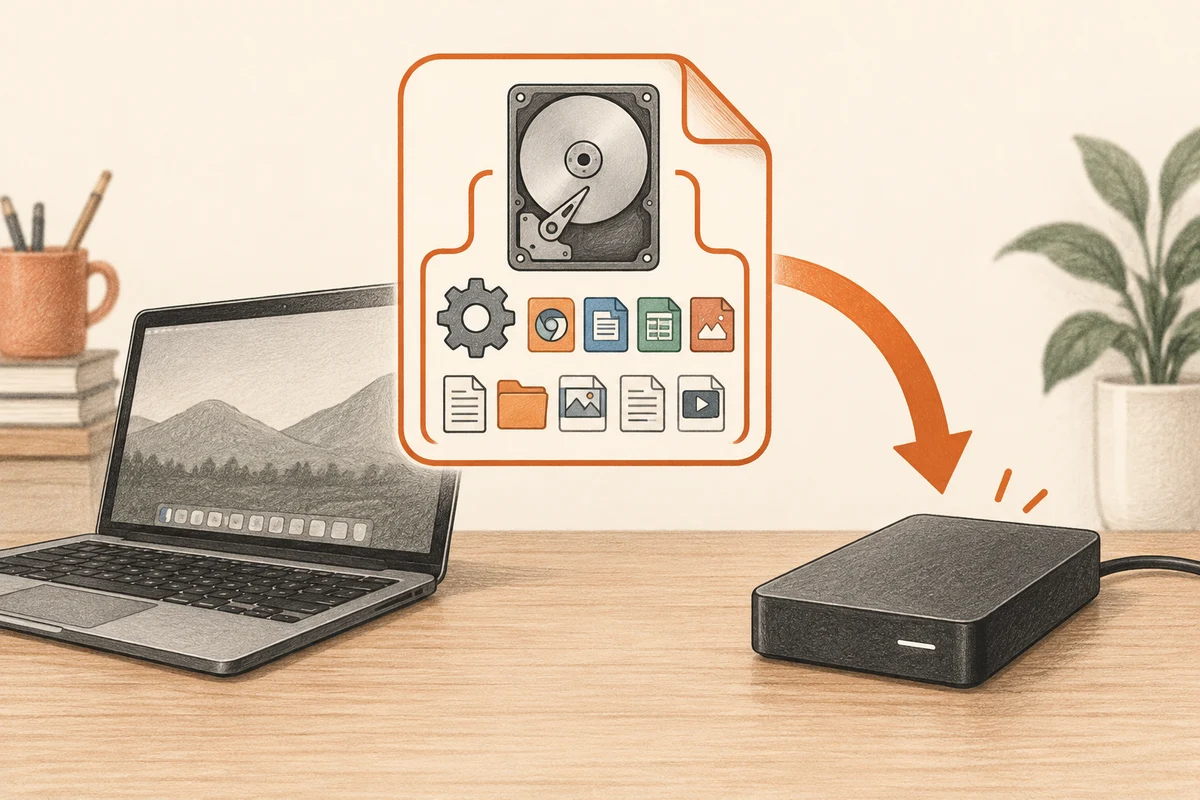
A system image captures selected disk contents in a form intended for broader restoration. Depending on the tool and selection, that can include Windows, installed applications and the partitions needed to start the computer. It serves a different purpose from copying a few personal folders. The question is whether you want to recover individual work or reconstruct a machine's earlier state.
An image is tied to the moment it was made. Documents created afterwards need their own protection. Keeping one image from the day a computer was set up may help with a rebuild, but it does not preserve months of later changes. Think of system recovery and current file backup as separate jobs.
The recovery environment matters
Read the imaging application's recovery instructions before relying on the archive. You may need a bootable USB drive and a version of the recovery software that can read your image. It also needs to recognise the storage controller, external drive or network destination holding the backup. A file that exists but cannot be reached from the recovery environment is not yet a workable recovery plan.
Keep any required encryption passwords and recovery keys accessible without the original Windows installation. Check whether restoring onto a replacement drive imposes capacity or partition requirements. Do not assume a smaller SSD will work merely because the visible files occupy less space; the imaging tool's supported restore process is what counts.
A non-destructive check can establish that the rescue media starts and sees the archive. Stop before confirming a restore onto a working disk. Actually overwriting a disk is a separate operation that requires a protected target and a clear understanding of the consequences.
Name images so they explain themselves
A filename containing the computer name, creation date and a short description is easier to interpret than a row of identical backup labels. Keep a small note with the tool version and where the rescue media is stored. Record whether the image was made before a major hardware or software change.
When retiring older images, retain the file backups that hold later work. A tidy archive should not erase the only copy of a recent project. For a household with one computer, a modest recovery plan that someone can actually follow is preferable to a large collection of unexplained image files.
Plan the storage layout after a failure
An image made from a computer with several drives needs a clear description of what it includes. The operating system may be on one SSD while working documents live on a second disk. Restoring the system image can bring Windows back without restoring those separate documents. Record the included disks and partitions in a note beside the image, using their capacities and purposes rather than relying only on drive letters that can change in a recovery environment.
Think about the likely replacement hardware. A recovery tool may have requirements for target capacity, partition layout or storage drivers. Check those requirements before buying a replacement SSD, particularly if you plan to move from a larger source to a smaller target. The fact that relatively little space was used does not guarantee that every image tool can restore into a smaller device.
There is also a difference between verifying an image archive and proving that a full restore boots. Archive verification can catch some integrity problems, but it does not reproduce every condition of a replacement computer. If you have suitable spare hardware and know how to isolate the original disks, a controlled restore exercise can provide stronger evidence. Otherwise, describe the limit honestly and keep a separate file backup so access to essential documents does not depend entirely on rebuilding the operating system.
Keep the image and subsequent file backups connected in your notes. If the image is six weeks old but documents were backed up yesterday, recovery may involve restoring the image first and then bringing the newer files back. Avoid opening an old synchronised folder and letting it reconnect before you understand how the sync service will reconcile that older state. Check the service guidance for a restored computer. The order of these steps matters because the restored operating system and the latest data do not necessarily represent the same date.