Identify both drives
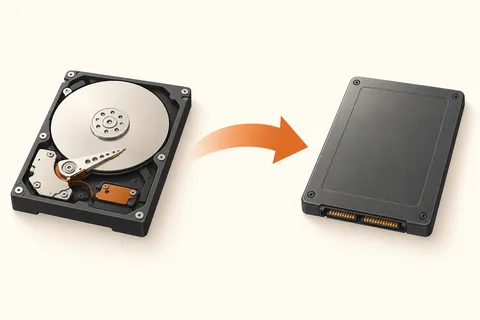
An SSD upgrade has two jobs: installing compatible hardware and getting the right data onto it. Begin with the computer's exact model and service instructions. A drive that fits a shopping category may still use the wrong interface, length or mounting arrangement for the machine. Establish compatibility before planning the transfer.
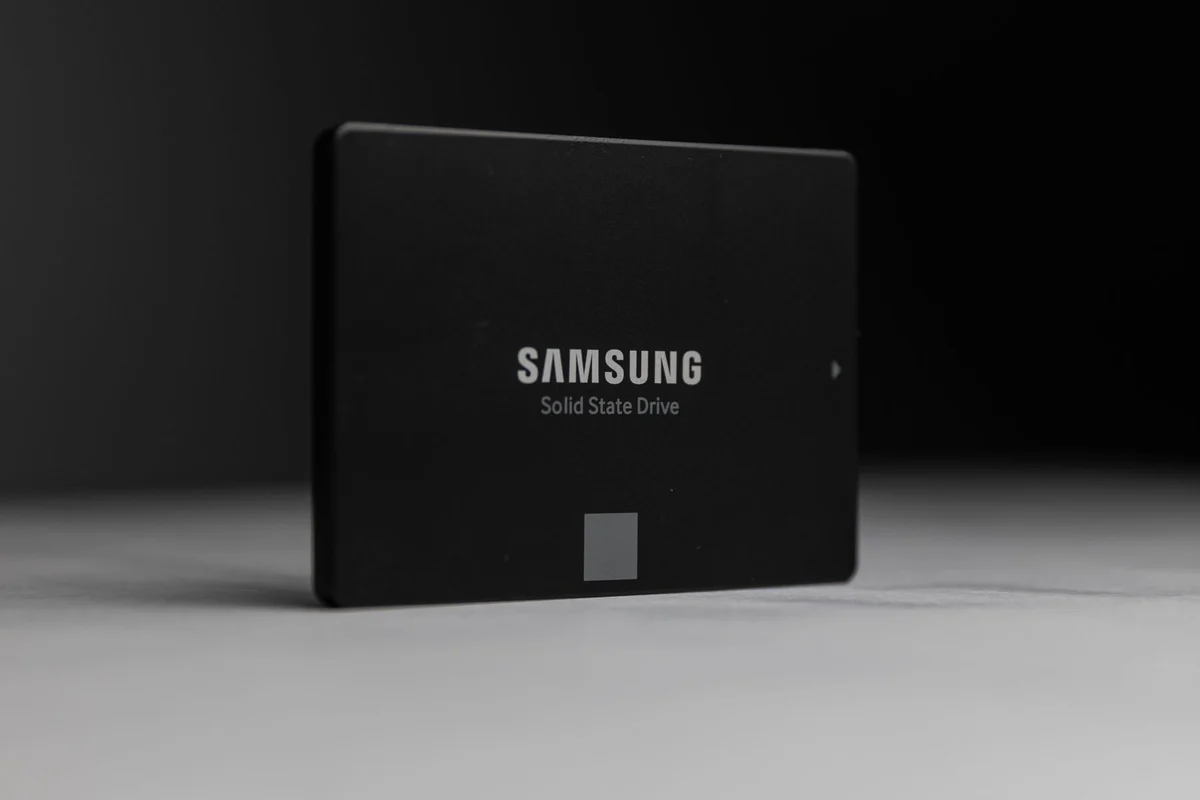
Next identify the current disk and the new destination by model and capacity. If you are cloning, the destination may be overwritten. Give the source and destination unmistakable names in your notes, especially when both appear as similar devices in an application. Remove unrelated external disks from the transfer setup where possible.
Protect the work before the move
Make a separate backup of important files before migration. The old disk should not be your only safety net while a program is reading and changing disk structures. Verify that the backup opens and that any encryption credentials are available without the current installation. A successful copy operation is easier to recover from than a mistaken destination selection without another copy.
Decide whether to clone the existing system or install Windows afresh. Cloning can preserve the current arrangement, including its clutter and faults. A fresh installation takes more preparation for applications, accounts and settings. Neither choice removes the need to save personal work independently.
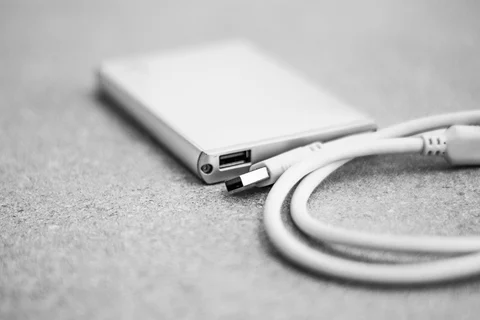
Check how both drives will connect during transfer. A laptop with one internal slot may need a suitable external adapter or enclosure, and that adapter must support the drive's actual protocol. Allow time for copying, installation and verification rather than beginning just before the computer is needed for a meeting.
Leave yourself a return path
After the new drive is installed, confirm that the machine starts from it. Open several documents, check applications you depend on and look at the available capacity. A larger physical disk does not necessarily mean the main partition has automatically expanded to use all of it. Use the migration tool's supported instructions for any adjustment.
Keep the old drive unchanged for a while in a protected place. Do not immediately format it as spare storage just because the desktop appeared once. Confirm that backups now include the new arrangement and that no working files were left on a separate partition. Only then decide what role the old drive should have.
Check the applications that do not live in Documents
Before the move, open the applications you would need on the first day with the new SSD. Note where they store projects, catalogues, templates and local databases. Some offer an export or backup command that is more suitable than copying their program folder. Check that route while the original installation is still working, and store the result with the independent file backup.
After migration, test those same tasks with the old drive safely disconnected where the hardware procedure allows it. Open a recent project, save a harmless change under a new name and confirm that linked resources are found. A program that launches successfully can still be reading a catalogue or media folder from the old disk. Testing with that dependency unavailable makes the missing link easier to notice.
Keep licence and account information accessible, but do not assume every application will require reactivation. Follow the vendor procedure if it does. The migration should leave you with a working set of tasks, not merely a new drive whose capacity appears correctly in the operating system.