Start with the devices
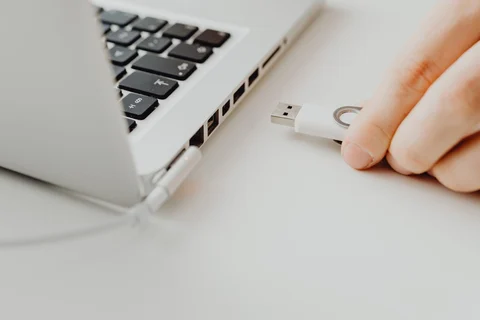
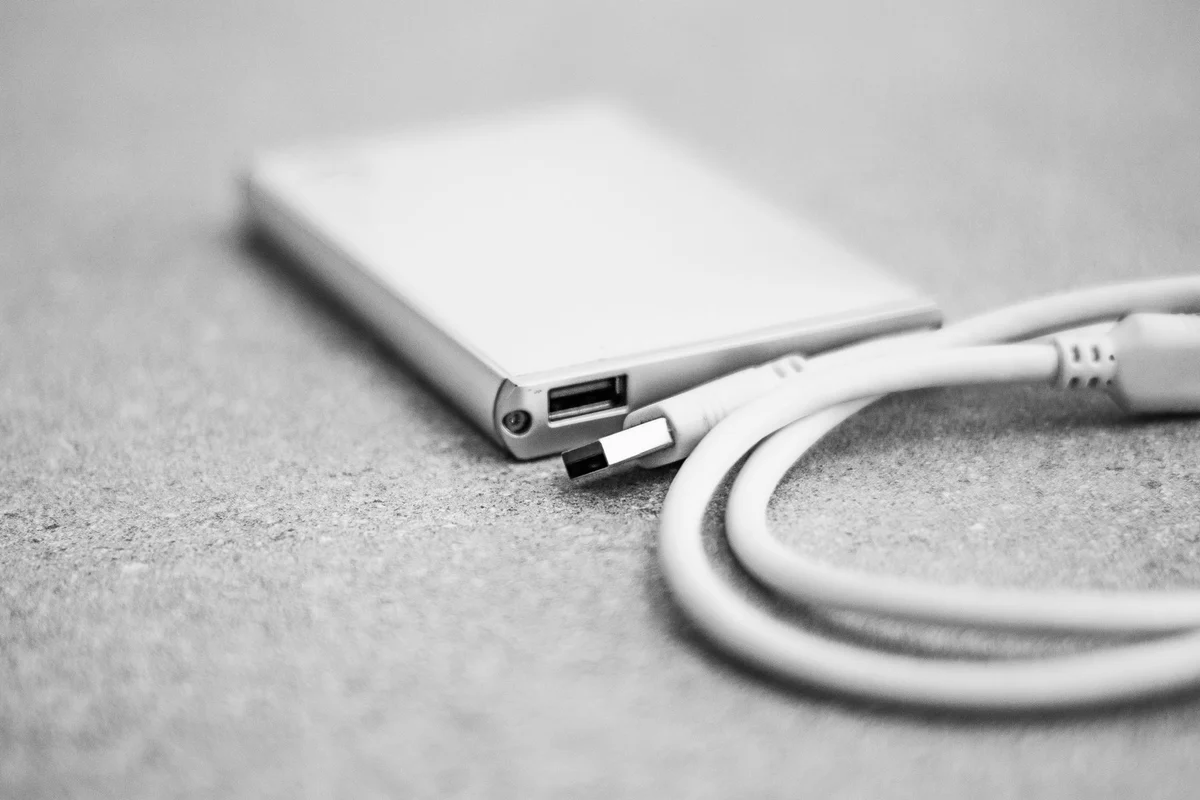
An external drive used only with Windows has different requirements from one passed between a Windows PC, a Mac and a television. Before formatting, list the devices that must read and write it. Their supported file systems matter more than a general claim that one format is best.
NTFS offers Windows-oriented features such as permissions and journaling. exFAT is often useful for exchanging files between systems, but support still needs checking on the actual devices. A television, camera or older appliance may impose its own restrictions. A computer recognising the drive does not prove another device will accept it.
Think about the job after formatting. A particular backup application may require a supported file system. An exchange drive for large videos has a different purpose. Do not redesign a working backup destination just because a television cannot read it. A separate transfer drive can be a simpler arrangement than making one device serve incompatible jobs.
Formatting changes the contents too
A normal format operation removes existing contents. Copy anything needed elsewhere and verify that copy before proceeding. Check the selected disk by capacity and name. A formatting dialog is the wrong place to rely on a vague memory of a drive letter, particularly when several removable devices are connected.
Leave the allocation-unit choice at its default unless a documented requirement gives you a reason to change it. A larger value is not a general speed upgrade. It can affect space use, especially with many small files. Avoid changing several unfamiliar options together, because a later problem becomes harder to isolate.
After preparing the drive, copy a disposable example of the files you intend to move. Open it on each receiving device, then test writing back where needed. Reading successfully does not prove that the other system can save changes. Check the complete journey before carrying the only copy of an important file.
Eject the drive properly after transfers and keep valuable material somewhere else as well. Compatibility is not backup protection. Label the drive's purpose clearly so that another household member does not reformat a backup disk simply to make it work with a different appliance.
A transfer drive and a backup drive need not match
Consider a drive used to take video files from a Windows computer to another device. The receiving device must read the filesystem, and the largest individual video must fit its file-size limits. Test one representative large file in both directions if writing back is required. A directory listing alone does not demonstrate that a long recording opens or that the second device can save a changed file.
A drive dedicated to a Windows backup application may have different requirements. Check the application documentation before making it identical to the transfer drive for neatness. Features such as permissions, encryption or the backup format can depend on the chosen filesystem. Keeping two clearly labelled drives with different purposes may be less confusing than repeatedly reformatting one device to serve incompatible tasks.
Before formatting, open the destination and inspect its contents even if you believe it is empty. Confirm the device by capacity and model, not only its current letter. Disconnect unrelated removable drives if that makes the choice clearer. Save any required files elsewhere, verify those copies, and only then proceed with the format operation.