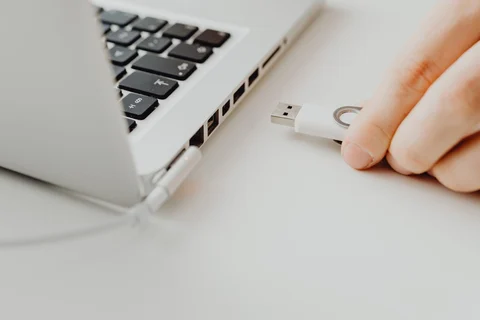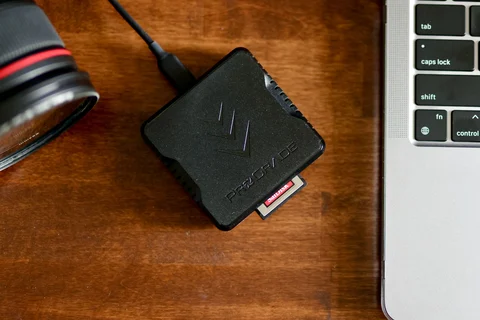
Before pulling the cable
The copy window has disappeared, but an application may still have a file open on the external drive. A photo editor, media player or backup tool can keep using the device after the transfer you noticed has finished. Safely ejecting the drive gives Windows a chance to complete outstanding work and tell you when disconnection is appropriate.
Close documents opened directly from that drive. If a backup is running, wait for its completion rather than interrupting it because the activity light looks quiet. Use the eject command for the correct device in Windows and wait for confirmation. A hub can contain several attached devices, so read the name rather than choosing the first removable item.
If Windows says the device is in use, treat that as information. Check open applications and Explorer windows showing its contents. Save work before closing programs. Do not force-quit an unfamiliar system process just to make a warning disappear; that can create a larger problem than leaving the drive connected.
When the message does not clear
Sometimes the application holding the device is not obvious. Give a recently completed transfer a little time and try again after closing the programs you recognise. If the drive can remain connected, there is no need to turn the message into an urgent repair job. A normal full shutdown is another route before unplugging once the computer has powered off.
Do not confuse ejecting with deleting a volume, formatting or uninstalling a device. Those are different actions. The ordinary removal command is meant to finish access, not alter the files or the drive's layout.
For frequently moved drives, build the final step into the routine: finish the task, close the files, eject, then disconnect. Keep the cable accessible so that removing it does not strain another connector. If the drive was pulled out during a write, check the affected files against another copy before continuing to rely on them. A familiar filename does not establish that the most recent save completed correctly.