What is worth keeping?
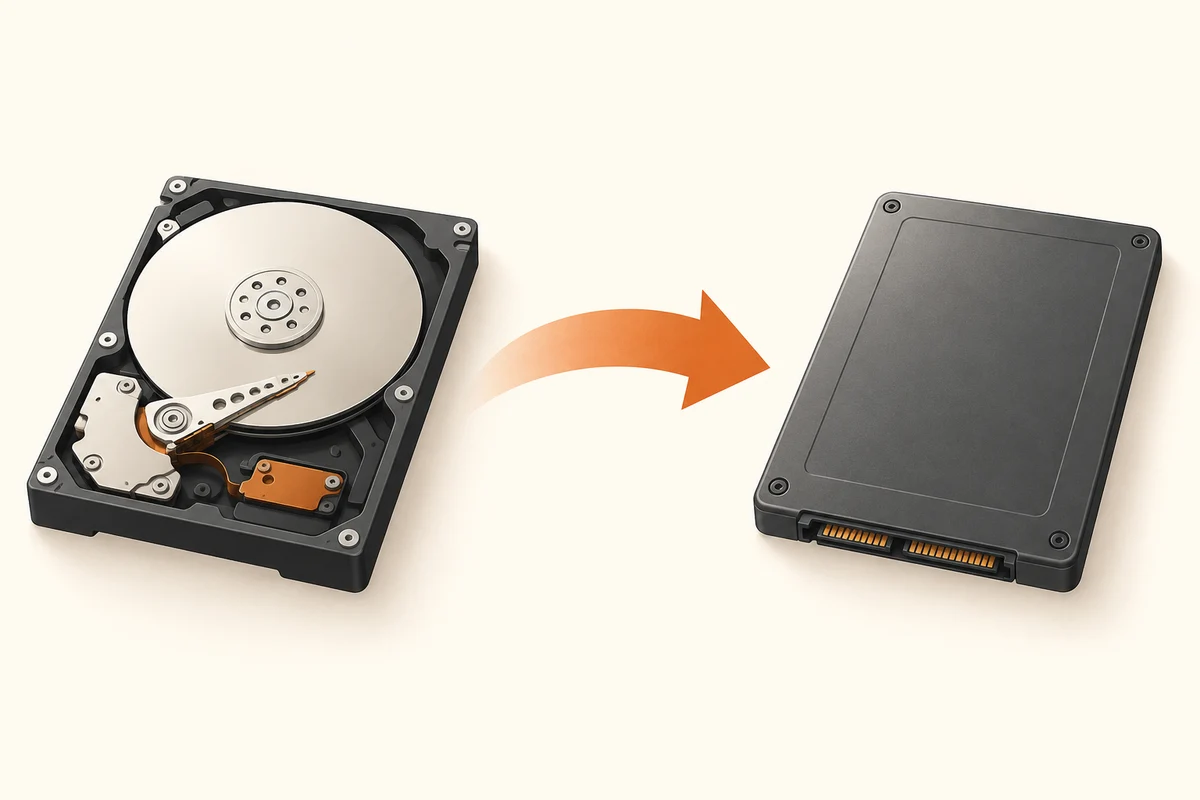
Cloning is attractive when a computer works well and simply needs a different drive. The aim is to reproduce its existing disk arrangement on another device. A fresh installation starts from a new base but requires applications, settings and personal files to be restored separately. Choose around the condition of the current setup, not just the apparent speed of copying.
A machine with unexplained crashes or unwanted software may carry those problems into a clone. Conversely, rebuilding a carefully configured specialist workstation can take much longer than reinstalling a browser. List the programs and settings that would be difficult to recreate. Include local databases, mail archives and projects outside the standard personal folders.
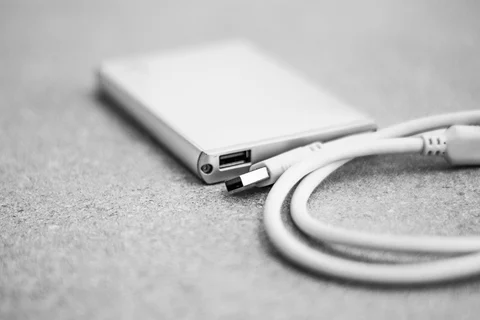
Cloning tools have specific requirements for the source, destination, partitions and encryption. A smaller destination is not universally supported even when the source is mostly empty. Read the instructions for the exact application. The operation can overwrite its target, so identify both disks by model and capacity and make an independent file backup first.
If the source is failing, repeated cloning attempts are no longer a routine upgrade exercise. Preserving irreplaceable data comes first. Valuable material may justify stopping and seeking recovery advice rather than repeatedly stressing the drive. A clone that finishes with unreadable sectors is not proof that every file survived intact.
The first boot is only part of the check
After cloning, confirm which disk is actually starting Windows. With both drives connected, the computer can appear successful while still using the original. Follow the software and hardware instructions for the first boot. Change one relevant setting at a time so that the result remains understandable.
For a fresh installation, prepare application accounts, licence information and essential network drivers where needed. Keep encryption recovery keys accessible. A written list of applications is useful, but it does not contain their data. Check how each important program stores and restores its own working files.
After either route, use the programs and documents that matter to you before repurposing the old drive. Establish a new backup of the working arrangement. Keep the original intact until the replacement has been checked in ordinary use. The migration is finished when the work and its recovery path function, not merely when a progress bar reaches the end.
When a fresh installation is the clearer choice
Cloning preserves the existing arrangement, including things you no longer need. If the old installation contains several abandoned tools, unexplained startup problems and folders whose purpose nobody remembers, a fresh installation may be easier to understand afterwards. That does not make reinstalling automatically better: it requires installers, account access, application settings and a plan for bringing personal data back.
Write down three tasks that must work after the move. For example, opening an editing project, printing a document and signing into a required work application may be more revealing than checking whether the desktop wallpaper survived. Use the same acceptance tasks whether you clone or reinstall. They keep the decision centred on the computer’s job rather than the convenience of one migration button.
If you clone, do not use the old source as the first place to store new work immediately afterwards. You could create two diverging sets of files without noticing which system you booted. Clearly identify the active installation and keep the retired source unchanged until the checks are complete. A temporary label on the old drive can prevent confusion when both devices have the same model and capacity.