Which applications need to arrive with you?
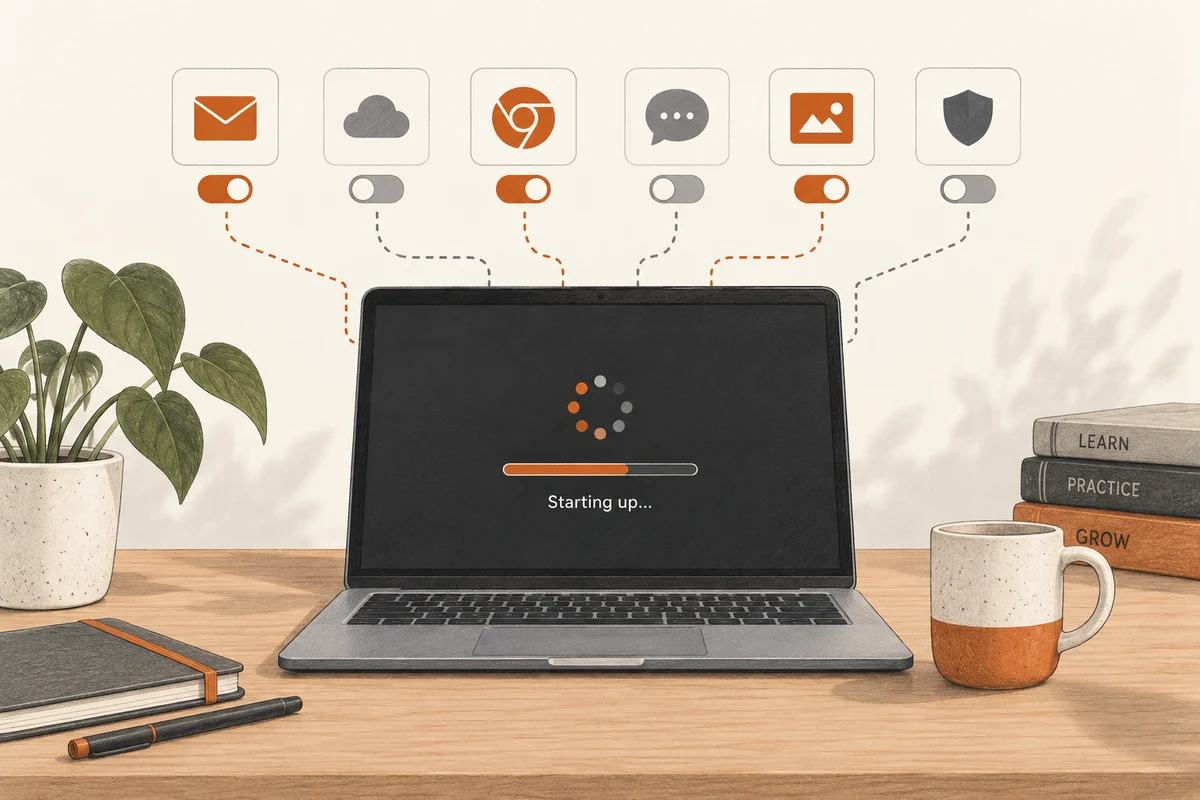
After sign-in, a chat window, a game launcher and several small icons appear. Some are part of every working day; others wait for an occasional outing. Startup controls determine which applications begin without being opened manually. They do not decide whether an application should remain installed. Keeping those decisions separate makes the cleanup less drastic.
Open Startup apps in Windows Settings or Task Manager. Identify the entries you recognise, and investigate the publisher and associated application before changing an unfamiliar one. An obscure name is not enough reason to disable something. Equally, a recognisable brand does not establish that its software needs to run at every sign-in.
Change one entry first
Choose an obviously optional application, such as a game launcher you rarely use. Disable its automatic start, restart the computer and go through your usual opening routine. If the application still opens normally when you deliberately request it, the change has achieved its purpose. Move on to another candidate only after checking that result.
Cloud storage, backup software, accessibility tools and security applications deserve more consideration. Preventing one from starting may also prevent an expected background task. Establish which function would be missing before making that trade. The target is a useful start to the day, not the smallest possible number of enabled entries on a settings page.
Separate impressions from comparisons
Judge the result under reasonably similar conditions. A restart immediately after a major update is not comparable with an ordinary morning. A browser restoring many pages can also dominate the first minute. Watch when the machine becomes ready for your normal first task rather than simply timing when the desktop appears.
The reported startup impact is a clue, not a complete diagnosis. Several modest entries can add up, while a single important service may justify its overhead. If disabling something changes nothing, restore it when appropriate and investigate elsewhere rather than removing more functions in the hope that one will help.
Some applications have their own launch-at-sign-in setting as well. If an entry returns after an update, inspect that preference. Keep a short dated note of the few changes you make. It explains why a familiar window no longer appears, and helps prevent a missing synchronisation task from being misdiagnosed as a network failure weeks later. Startup adjustments are most useful when their consequences remain visible and reversible.
Judge the change during the next working day
After disabling a startup entry, check its associated function during ordinary use. A printer may still print without its additional status utility, while an expected synchronisation may no longer run. What matters is not merely how quickly the desktop appears, but whether intended jobs still happen. Open the application manually if necessary and inspect its state. This distinguishes an unnecessary convenience from a background task you depend on.
A fair timing comparison needs similar conditions. The first start after a large update may include extra work and is a poor comparison with an ordinary morning. Sign into the same account and wait for the same usable situation, such as your working application being ready. Time to the desktop wallpaper says little about when useful work can begin. A faster-feeling start is welcome, but not when it is achieved by silently omitting necessary services.