The storage chart is a starting point
A nearly full drive is easier to organise once you know what occupies it. Open the storage overview and distinguish applications, personal files and temporary data. A large category is not permission to delete it. It tells you where a closer look is most likely to be worthwhile.
Begin with understandable candidates: a replaced installer, a video deliberately downloaded twice, or an application you no longer use. Check the contents and their location. Many people keep important paperwork in Downloads, despite a name that suggests a temporary stopping place. Age alone does not make a document disposable, particularly when it is the only copy.
Verify a move before removing the original
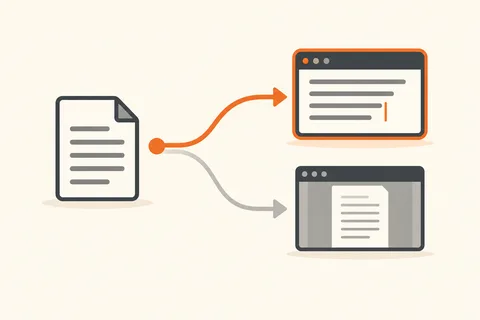
If files need to move to an external drive, copy them first rather than immediately moving them. Open a selection at the destination and compare the folder structure. Only then decide what to remove from the computer. Deleting the original can turn an extra copy into the only copy. Important material still needs another backup after that change.
For cloud folders, establish what deletion means before proceeding. Removing a local download and deleting a file everywhere are different operations. Use the service's documented local-space feature when you only want to reclaim room on the device. A bin icon by itself does not explain how widely the action will propagate.
Give automatic cleanup boundaries
Windows offers cleanup recommendations and Storage Sense. Read the selected categories before running them. Recycle Bin contents, Downloads and previous installation files deserve deliberate choices. A recoverable mistake can become permanent when an automatic retention rule later removes its remaining copy. Review those rules while you can still see what they will affect.
Avoid deleting unfamiliar system files by hand. You also do not need a cleaner merely because it reports an alarming number of supposed problems. Recovered gigabytes are something you can inspect; a total of repaired entries says little about the benefit to your own work. The built-in storage views are normally enough for an initial inventory.
Check free space again after cleanup and see whether it disappears unusually quickly. A continually growing export folder needs a different answer from a one-off collection of videos. Choose a regular destination or retention practice for recurring large files. The next cleanup should be smaller because the source of growth is understood, rather than because another indiscriminate deletion has temporarily hidden it.