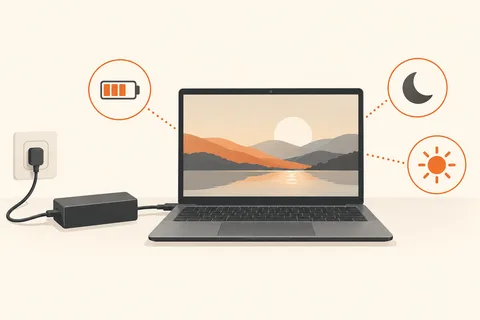
What should remain ready after the break?
You stop for coffee, or pack the laptop away until tomorrow. Both end active work, but their requirements differ. A short interruption benefits from quick resumption. A longer absence without a charger places more emphasis on how much energy is consumed while the computer is waiting.
Sleep keeps the computer ready in a low-power state. Hibernation stores the session state on the drive and generally uses less energy during the interruption, although resuming often takes longer. Available options and actual behaviour depend on the hardware and its configuration. Do not assume that every device offers precisely the same power menu.
A closed lid is not an unambiguous instruction
Closing a laptop can trigger different actions. Inspect what the power settings specify both on battery and when plugged in. A docked machine may intentionally keep running, while the same behaviour inside a closed bag would be undesirable. A setting remembered from another laptop model is not evidence of this one's configuration.
Test the intended behaviour calmly on a desk. Save your work, request the chosen state and observe whether the computer reaches it. Then check that it resumes reliably. Before transport, establish that the machine is not still working under load. If uncertain, an intentional shutdown is the easier state to understand.
Open windows are not a backup
Even when applications return after waking, explicitly save important documents. A restored screen state replaces neither a saved file nor a backup of that file. Some applications need to reconnect after a long pause or require another sign-in. Allow for that before arranging a meeting that must begin immediately after opening the lid.
If a connected device disappears after resuming, record the affected device and port. A controlled reconnection or ordinary restart can help narrow the problem. Recurring behaviour deserves model-specific manufacturer guidance rather than permanently disabling every power-saving feature without identifying the cause.
Choose the pause mode around your routine and check it again after significant workstation changes. Adding a dock can make behaviour appear different. Remaining battery charge matters during an extended absence too. The convenient option is the one whose effect you understand on your own machine, not simply the one with the most familiar name. A short, deliberate trial is more informative than discovering the difference while the laptop is packed away and unavailable.
From the desk into a bag
A laptop that appears quiet immediately after closing the lid is not automatically ready for a long journey. Which activities continue or can wake it depends on hardware and power settings. Check the manufacturer’s intended behaviour before putting it in a confined bag. If it remains unusually warm or its fan continues running, investigate and deliberately shut it down fully for transport. Closing a lid is an action, not proof that a particular state has been reached.
For a trial, leave a harmless document open and enter the intended mode. On returning, check whether the session reappears, external devices reconnect and sign-in is required as expected. Session restoration does not replace saving. Applications can have trouble after waking, and unexpected loss of power can threaten unsaved work. Save important changes before switching states, even when the process usually appears seamless. That gives the test a recoverable starting point.
For a desk setup, include the dock and external screens in the trial. If only one monitor fails to return, the entire power mode may not be at fault. Check the input, connection and display settings first. A problem occurring exclusively with one dock differs from a laptop that also fails to wake reliably without accessories. Record that distinction before altering several power options at once. It helps direct the next investigation towards the part of the setup that actually changes the outcome.