One computer, several workspaces
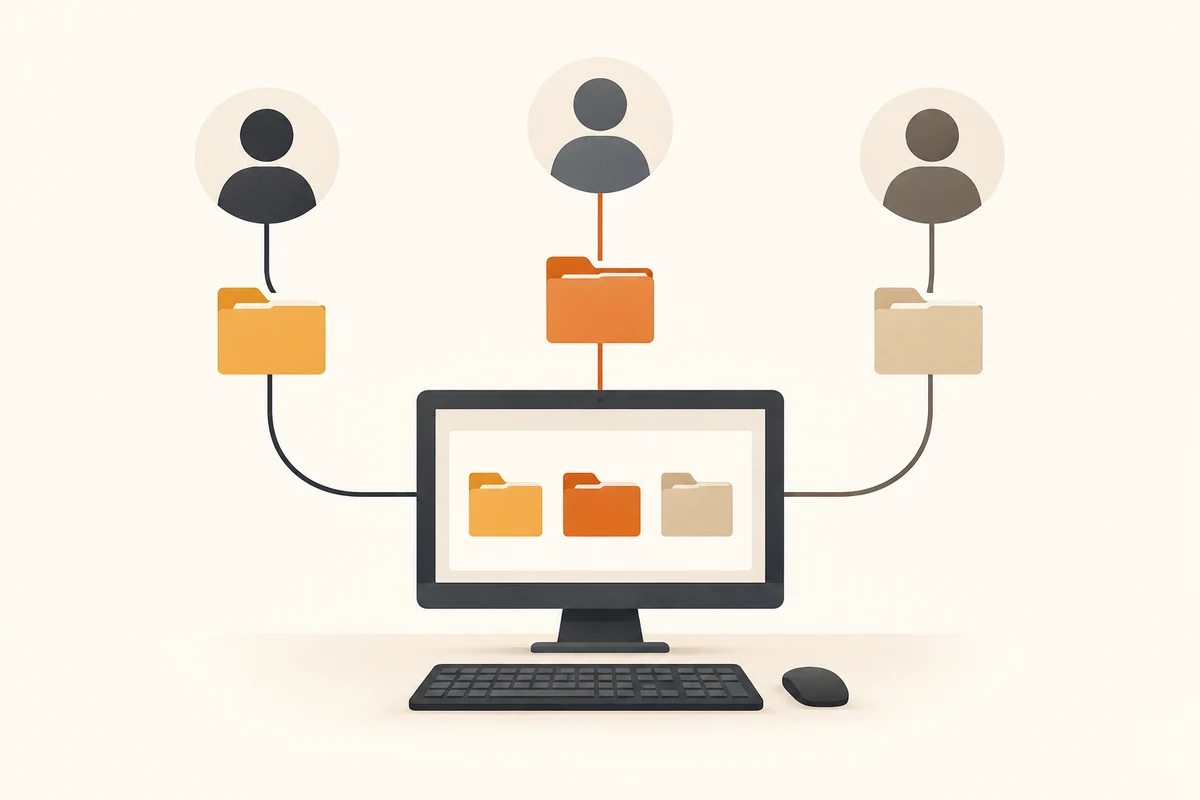
When several people use the same Windows account, downloads, browser sign-ins and documents soon become mixed. A different wallpaper does not separate them. Individual user accounts provide each person with their own environment, settings and personal folders. This is particularly useful when the computer regularly changes hands.
Create accounts through Windows account settings and decide deliberately who needs administrative rights. Not everybody needs to install software for the whole device. Before altering an existing account, ensure that a working administrative sign-in is known and accessible. Otherwise, a well-intentioned cleanup can make later management unnecessarily difficult.
Agree where shared material belongs
Separate personal files from material that genuinely needs to be shared. A designated shared folder with understood permissions is clearer than routinely working inside someone else's Documents folder. Agree who can change the contents and which file is current. Naming a folder Shared does not itself establish access permissions.
Browser accounts deserve attention too. After the first sign-in, check that another person's cloud account has not accidentally been connected. Synchronisation can transfer bookmarks, settings or other material to additional devices. Each person should understand which account is active in each application. Signing into Windows and signing into a particular program are not always the same decision.
Include every user in the backup plan
A backup configured from one person’s session does not necessarily include every other account’s personal folders. Establish which important material is covered for each person. That does not require browsing one another’s private documents. Each user can restore a harmless sample and confirm the intended backup destination. Responsibility for running the backup and access rights to its contents should be as clear as the accounts on the computer.
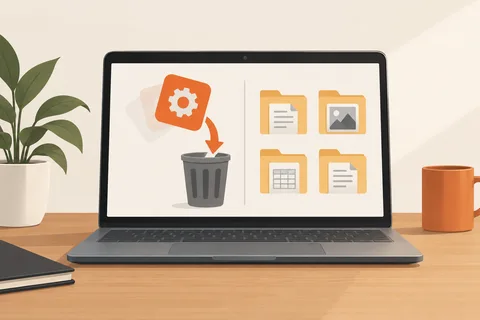
When somebody stops using the shared machine, begin by handing over their data and required access details. Remove the local account only after the transfer has been confirmed. A cloud account may continue to exist independently. Removing a local sign-in is not the same as deleting an online account altogether or cancelling a service.
Switch without losing someone else's work
Save important documents before handing over the computer. Switching users can leave applications open in the background. A later restart may therefore affect another person's unsaved work. Agree on a simple routine for updates and shutdowns. Technical separation is more useful when everyday habits support it.
Lock your own session when leaving the machine. Separate accounts help little if everybody continues working in the previous person's open session. Use individual sign-in details rather than sharing an administrative password for convenience. The responsible person can assist deliberately when a change requiring those rights is actually needed.
Before removing an account, back up and check the files that must survive. Deleting an account is not merely hiding a name from a list. Consider local mail data, application exports and other material outside the obvious document folders. Separate accounts are not a replacement for backups and do not prevent every action an administrator can take. They do, however, make shared use clearer, reduce accidental mixing and give each person's work an understandable home.