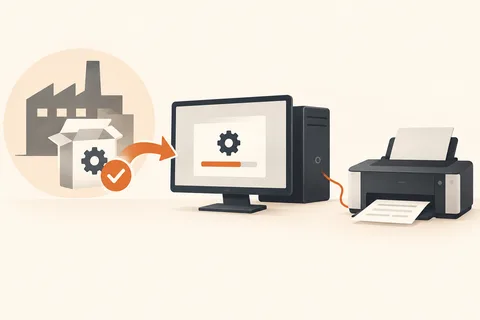
The application is not the same as its files
A rarely used application occupies space. Before removing it, check whether important work exists only in its own format. A project folder may survive but become difficult to use without suitable software. Open the material you need and export it to an appropriate exchange format where necessary. Check that export before removing the original tool.
Also record how the application could be installed again: its source, version and any relevant licence details. Some publishers provide a way to release a device activation. Follow their instructions if that applies. Uninstalling software and cancelling a subscription are different actions; removing the application does not automatically end an ongoing contract.
Use the intended removal route
Use Windows' installed-apps list or the publisher's documented uninstaller. Do not simply delete the program folder. That can leave entries, services or shared components behind without properly removing the application. Follow the prompts and read carefully when asked whether personal settings or data should be deleted too.
Close the application and save open work before uninstalling. If a restart is requested, schedule it deliberately. Avoid removing several unfamiliar components together merely because their names look similar. Libraries and runtimes can be required by other programs. An entry lacking a familiar icon is not evidence that it is unnecessary.
Check the intended result
Confirm that the application has disappeared from the installed list and that the reclaimed space is broadly understandable. Remaining documents may be intentional. Inspect their contents before deleting their folders. An automatic leftovers cleaner cannot know which personal template you will want again later.
If removal fails, record the complete message and find the relevant publisher guidance. An official repair or removal utility may exist for a particular product, but it should match that product precisely. A general tool promising to remove absolutely everything is not a necessary default step.
Finally, check file types previously opened by the removed application. A PDF or image may need a new default association. Remove outdated shortcuts only after establishing where they point. A completed uninstall means that unnecessary software is gone and retained material remains understandable and accessible. It does not require erasing every trace of an old filename, particularly when those files are the work you intended to preserve in the first place.