A driver belongs to a particular combination
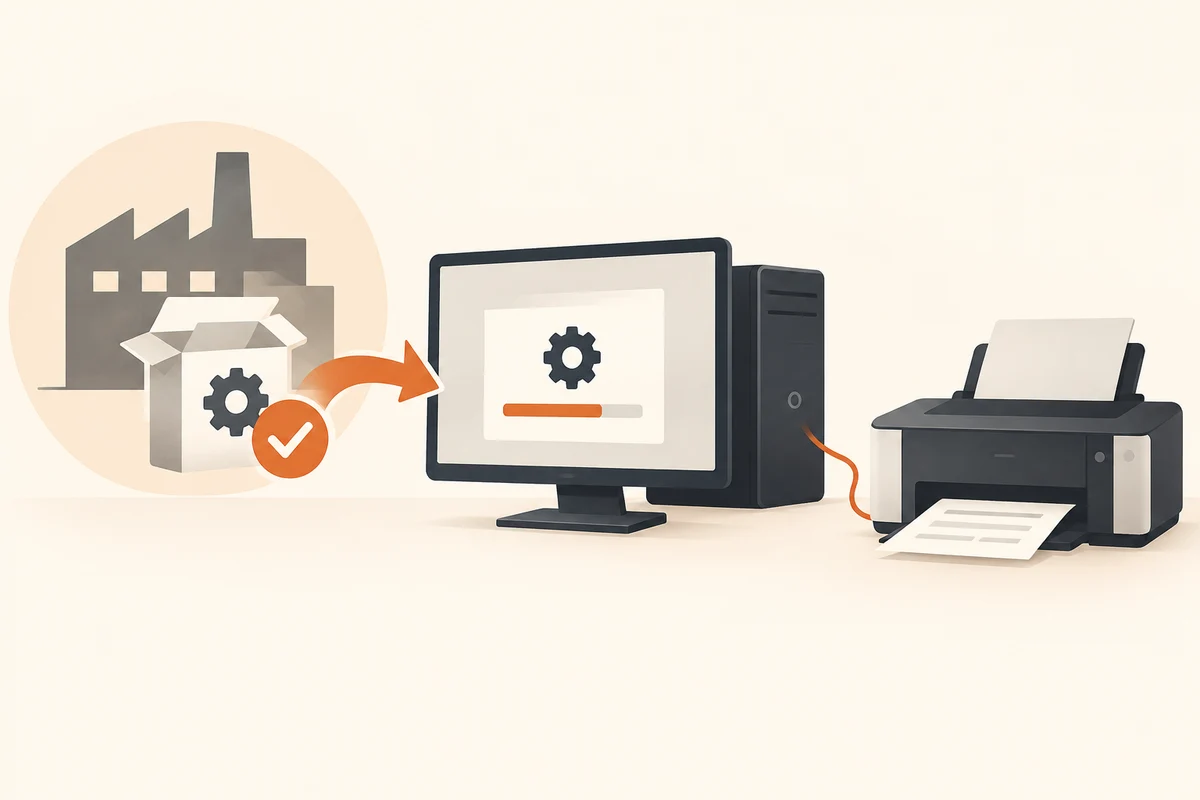
A driver connects Windows with a hardware function. A brand name alone is therefore rarely enough for finding one. Similar product names can cover different laptop variants, wireless modules or printers. Record the exact model and Windows version before downloading anything. For a complete PC, its official support page is often the clearest starting point.
Windows Update supplies appropriate drivers for many devices. Check that intended route first unless the manufacturer specifies otherwise. A newer date on an arbitrary download website does not establish that its package is better suited to your particular combination. Being recent and being appropriate are different qualities.
Name the reason for changing it
Are you enabling a missing function, addressing a documented fault or supporting new hardware? That question narrows the search. If everything works as needed, an unfamiliar application listing supposedly outdated drivers is not sufficient reason to change every component at once. That introduces more variables than you can meaningfully compare afterwards.
Read the supported models, operating systems and installation notes on the publisher's page. Laptops may require customised packages for particular features. Do not automatically substitute a general component driver when the device manufacturer specifies another approach. Download through the official site and check whether the displayed publisher matches the expected supplier.
When the affected device is the network connection
Preparation matters especially for a network driver. If connectivity disappears after a change, the relevant download page may no longer be reachable from that computer. Obtain the model-specific package beforehand on accessible storage and retain the instructions offline. This does not call for a collection of arbitrary driver bundles: one clearly identified package is easier to verify than many similarly named files.
For support, distinguish an undetected device from a connected device without internet access and from intermittent disconnections. Those situations may have different causes. Record whether the same hardware worked before the change and whether another connection route remains available. A driver update should test a particular hypothesis, not serve as a universal response to every networking difficulty.
Make one traceable change
Save your work and record the current driver version when investigating a fault. Install the relevant package only, then perform any requested restart. Test the specific function that motivated the change. A successful installation dialog does not prove that an external monitor or wireless connection now behaves reliably in your actual setup.
If behaviour worsens, knowing the previous version makes a support request more useful. Windows may offer a rollback in some circumstances, but it is not always available. Avoid pre-emptively removing every previous package and backup before checking the new combination. Keep enough information to describe the before-and-after state accurately.
Firmware and BIOS updates are separate subjects with additional device-specific requirements. Do not treat them as incidental extras alongside an audio-driver download. Read the exact model's instructions when uncertain. One clearly documented update is easier to maintain than a collection of unexplained changes whose source and purpose are forgotten after the next restart.