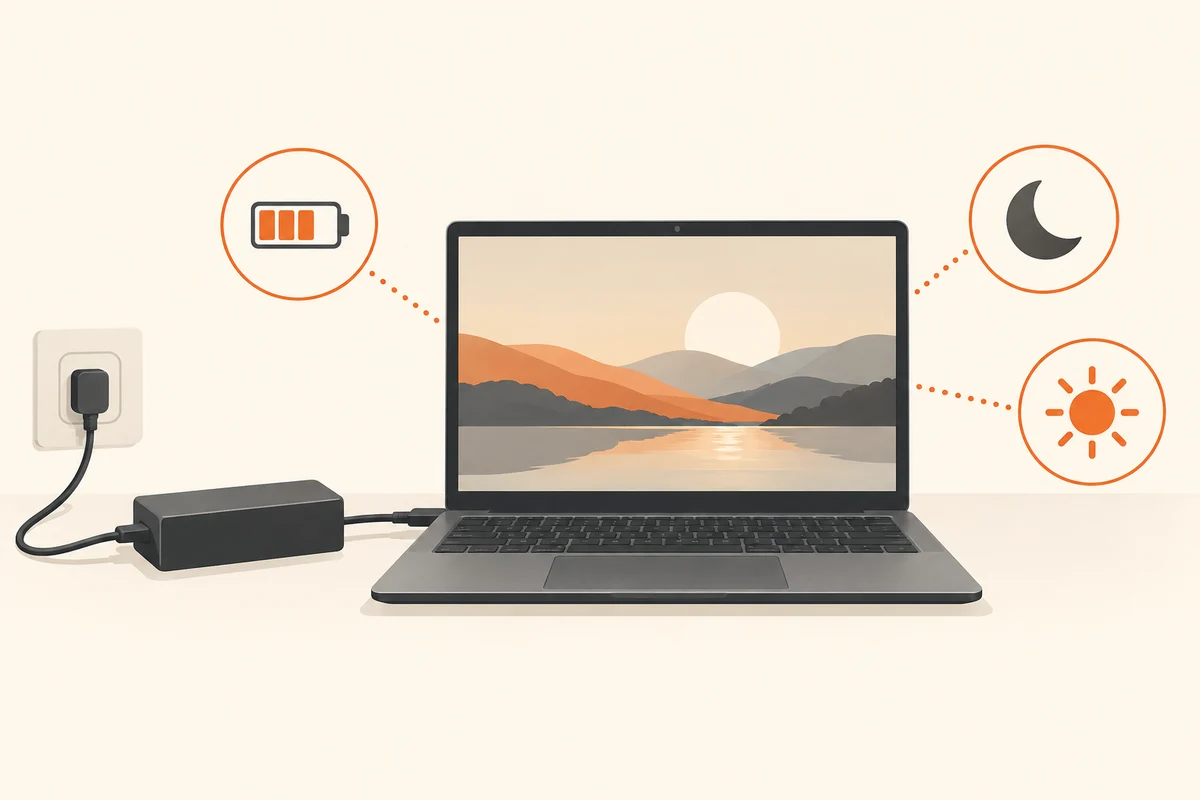
Different work deserves different settings
A laptop exporting a large video has different demands from one used to read a document. The appropriate power mode depends on the work and available power supply. Leaving the machine permanently focused on performance can increase consumption or fan noise without making a simple activity noticeably better.
Begin with the balanced or manufacturer-recommended default. Work normally for a while and identify what actually bothers you. Is one application slow to respond, is the battery draining quickly, or is the fan simply audible? Those observations should determine the next adjustment. One control cannot resolve every possible cause of an unsatisfactory experience.
Separate screen timing from sleep
The delay before the display turns off is different from the delay before the computer sleeps. A dark screen can coexist with a machine that is still working. Choose timings that avoid interrupting brief reading pauses while also avoiding unnecessary activity when the device is unattended for longer periods.
Different values may make sense on battery and on mains power. Review both explicitly. A laptop that is always plugged in at the desk reveals little about its behaviour while travelling. Display brightness affects battery use as well. Correcting an unnecessarily bright screen can be more targeted than changing the entire performance profile.
Let a long task finish
Before a planned export or substantial backup, check whether the chosen sleep timings suit the activity. Some applications keep the computer awake while working; others depend on system settings. Turning the display off may still be appropriate. Observe a small trial to see whether the operation continues or pauses, rather than discovering an incomplete backup the following morning.
If you temporarily extend the timings for one task, record the original values and restore them afterwards. A one-off overnight operation should not silently become the laptop’s permanent policy. Also check that the computer remains connected to power if required and that ventilation is unobstructed. Its power settings and physical placement need to support the same intended workflow.
Compare the same activity
To compare two modes, use the same workflow. Open the same file and perform the same export, for example. Note approximate duration, battery state and noise. Comparing a quiet afternoon of writing with a day of video meetings reveals little about the effect of the selected mode because the workload has changed too.
Manufacturer software may offer additional profiles. Establish whether it acts alongside Windows settings and avoid changing both layers simultaneously. Names such as Quiet and Performance describe an intention rather than a guaranteed measurement. Actual results depend on the device, its cooling arrangement and the particular task being performed.
If battery life suddenly falls, first inspect running applications and recent changes in usage. A large synchronisation job can temporarily require more energy. If the change persists, record the pattern and inspect the device's battery information. An extreme saving setting may hide symptoms without explaining a new fault or an ageing battery. The useful outcome is a configuration that suits your work and a clearer understanding of unexpected changes, rather than the most aggressive setting available.