Decide what should stay visible
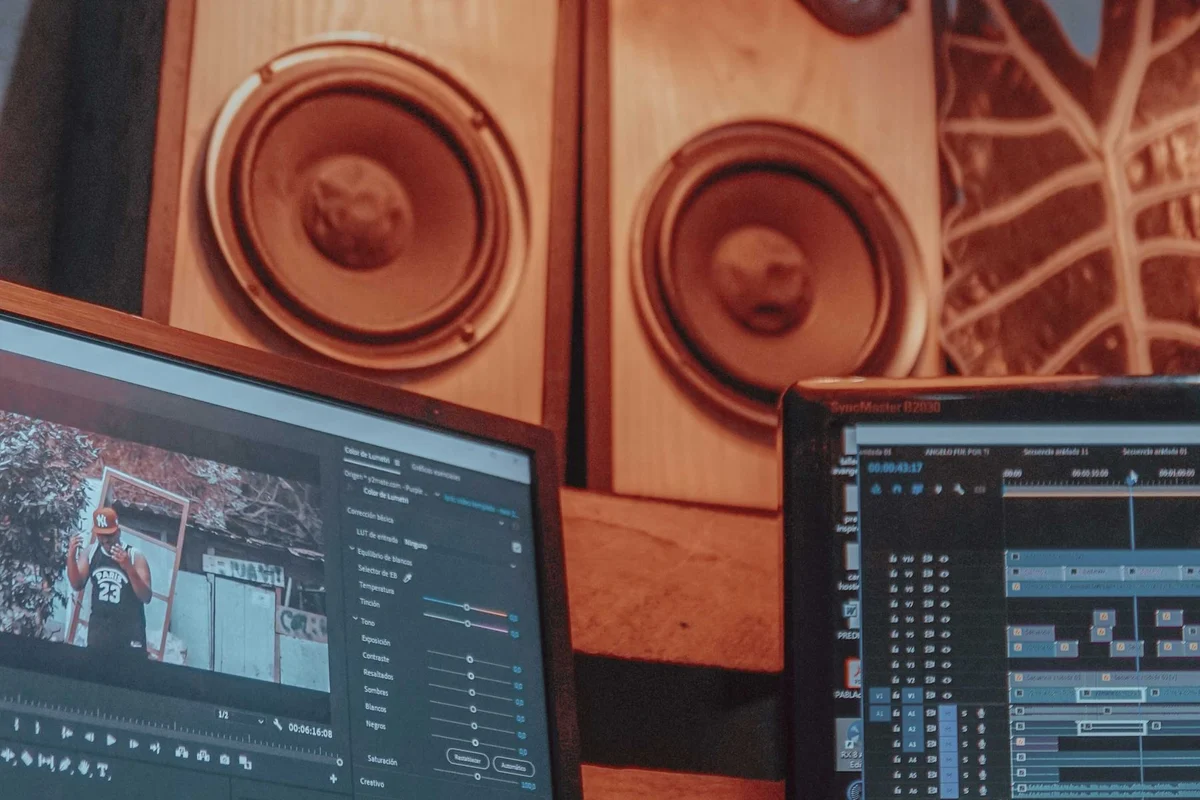
A second monitor is most useful when it has a clear role. Perhaps a reference document should remain visible while you write, or a call window should stay beside a project. Describe that arrangement before buying another screen. If the problem is simply a crowded application, one larger display or a better window layout might solve it with fewer cables.
Sketch where the primary task will sit. A secondary screen placed far to one side can encourage repeated turning when it actually contains the main work. Put the most-used content in the position you face naturally. If both displays share attention equally, test their combined width against the desk and viewing distance.
Check outputs before adapters
Count the display connections the computer supports simultaneously, including its built-in screen if it is a laptop. Physical socket count does not always establish the supported monitor arrangement. Read the model's documentation for resolution and refresh-rate combinations. A dock adds another set of limits, so its display table must match the host and operating system.
Do not buy a splitter expecting it automatically to create two independent desktops. Some devices duplicate one signal, while other adapters provide a different display mechanism with their own requirements. Identify whether you need duplication or extension and confirm that the chosen hardware provides it. A product description should state the function plainly.
Arrange the desktop to match the desk
After connecting the monitor, identify each display in Windows and arrange their rectangles to match the physical positions. This makes pointer movement more predictable. If one screen sits higher, reflect that relationship in the layout. Choose the intended primary display rather than allowing the order of cable connections to decide where everyday applications appear.
Set a comfortable scale on each screen. Two displays can have different pixel densities, so the same scaling value may not produce the same apparent text size. Move your regular applications between them and check whether they remain clear and usable. Older software may respond differently from newer applications, and that is best discovered before a busy work session.
Test the ordinary interruptions
Disconnect and reconnect a laptop, wake the computer from sleep and open the programs you normally use. Observe where windows return. A configuration that works immediately after setup may still need adjustment for daily docking. Save any useful application layout through supported features rather than depending on every window to remember its position perfectly.
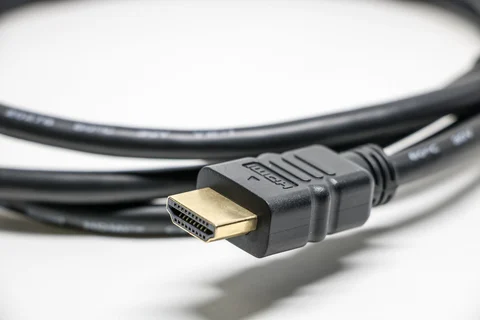
If one display disappears, simplify the setup. Test it directly with a known suitable cable and verify the selected input. Reintroduce the dock or adapter after the basic connection works. This separates a screen problem from a shared connection issue without changing every setting at once.
Leave the desk usable
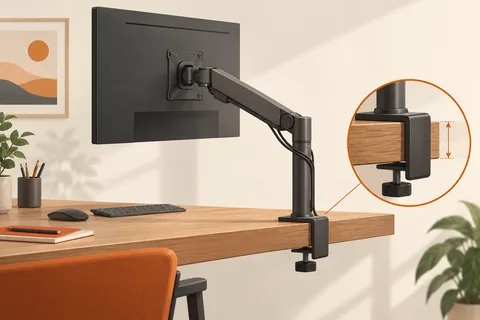
Account for stand footprints, power sockets and cable slack. A screen arm needs compatible mounting and adequate desk support. Keep cables clear of moving desk parts and allow adjustment without pulling on connectors. The second monitor should reduce friction in a particular workflow; it need not become a permanent home for notifications that distract from the first one.
After a few days, revisit the arrangement. If you rarely use the extra screen, give it a more specific role or simplify the layout. More display area is an option, not an obligation. A setup that preserves focus and keeps the needed material visible has achieved more than one that merely fills the desk.