Keep the file you have now
Discovering that a document has lost an important section often leads to an immediate search for an Undo button. If the file has already been closed or edited elsewhere, that may not be enough. Before experimenting, save a separate copy of the current file. It may contain newer work that is worth keeping even if part of it is wrong. Give the copy a clear temporary name and put it somewhere you will not accidentally overwrite during recovery.
Work out where the document actually lives. A desktop shortcut might open a file in OneDrive, a network folder or a local project directory. The right recovery route depends on that location. Looking in a cloud version history will not find changes to an unrelated local copy merely because both have the same filename.
Search by the event you need to undo
Try to identify when the unwanted change happened. A message sent with the earlier draft, the time of a meeting or a remembered paragraph can help narrow the search. Modification dates are clues, not proof: copying and exporting can affect timestamps, and an older-looking filename may contain a newer revision.
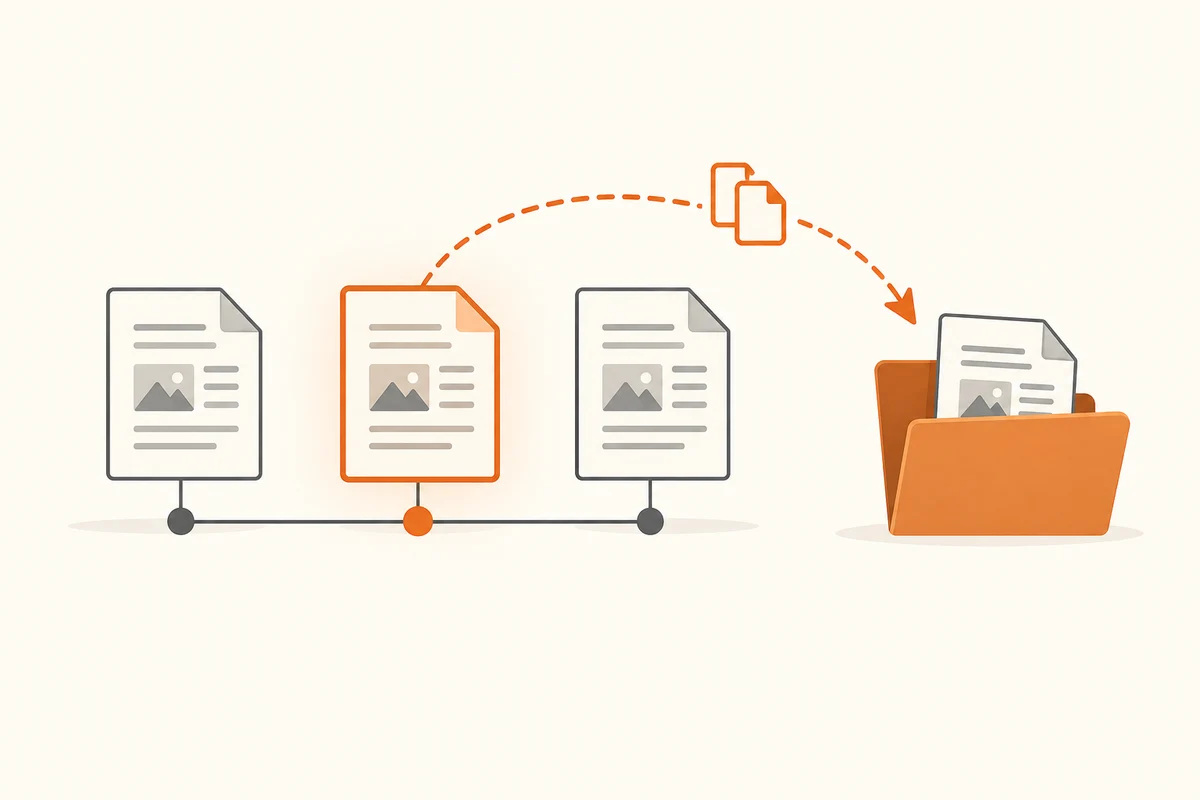
For a file stored in OneDrive, its version history may provide earlier saved states. Microsoft documents this for several file types, not just Office documents. Local backup software or Windows File History may offer a separate history if the folder was included before the change. These options cannot invent a version that was never retained. Check the actual available dates rather than assuming every edit has a recoverable copy.
Preview or download a candidate where the interface permits it. If the only available action replaces the current file, make certain your separate current copy is safe first. Open the recovered candidate and look for the missing material. Do not judge by file size alone: a substantial document can still be the wrong draft.
Bring back the missing work without losing the new work
When both versions contain useful changes, restoring the whole older file may be unnecessarily destructive. Copy the needed section into the current draft or use the application's comparison feature if available. Check formatting, linked material and calculations after merging. A spreadsheet can look familiar while referring to a different range or missing a recently added sheet.
Once the result is correct, save it under the intended working name and keep the recovery copies until you have checked the final document. If someone else collaborates on the same file, explain what was restored before they continue editing. That prevents a second well-meant correction from undoing the recovery you have just completed.
When the first search finds nothing
Look for copies created through ordinary work: an attachment you sent, a download in another folder or a copy on a computer that has not yet reconnected. These are leads, not necessarily authoritative versions. Preserve each candidate under a distinct name and compare its contents. Avoid turning on synchronisation on an offline computer before considering whether it may contain the older copy you need.
If the file belongs to an organisation, ask its administrator what recovery options exist before installing third-party recovery tools. Retention settings and permissions can differ from a personal account, and some actions may need administrative access. Describe the location, filename and approximate time of the unwanted change. That gives the administrator a clearer starting point than a request to restore everything.
If no earlier copy exists, acknowledge that limitation and protect the surviving work. Reconstructing a missing section from notes may be the remaining option. Afterwards, choose a versioned backup for that working folder and make a small restore trial. The useful lesson is a specific change to how that file is protected, not a vague intention to back up more often.