Confirm that there is something to replace
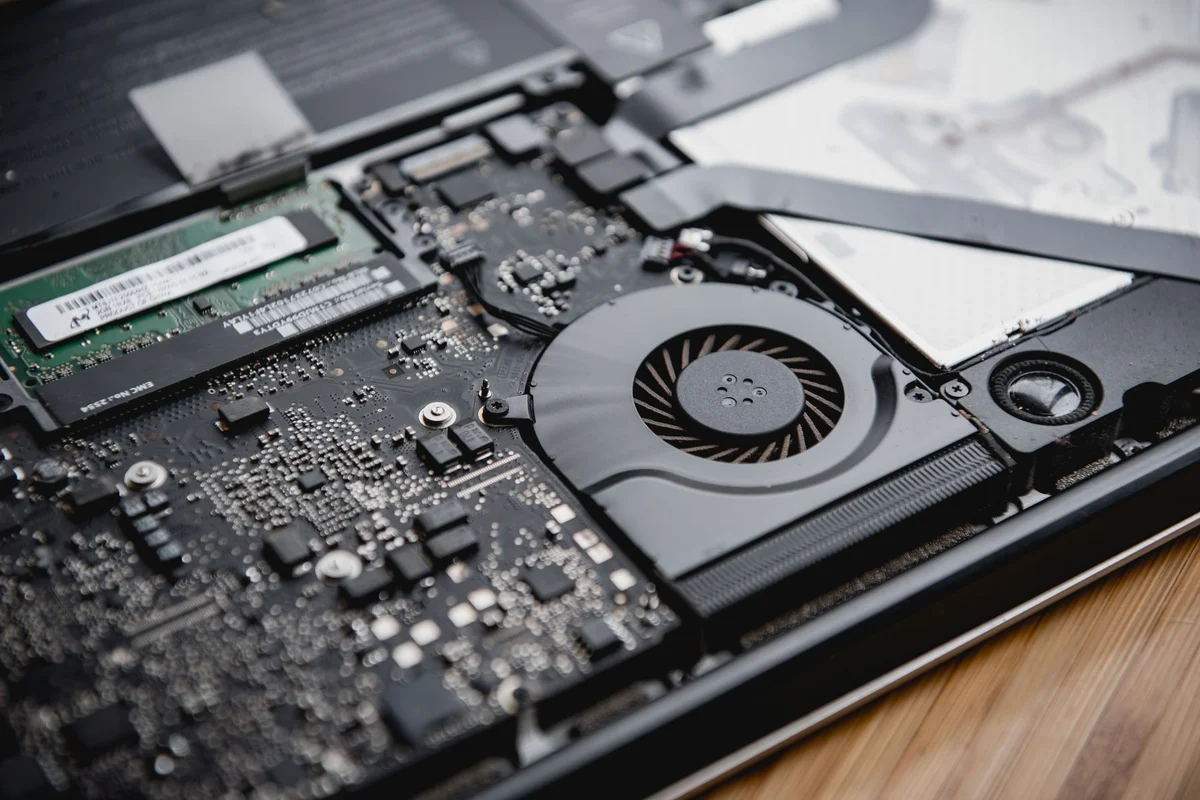
Before opening a notebook, establish whether its memory is removable. Some machines have accessible modules, some have memory soldered to the board, and others combine both. A teardown of a similar-looking model is not enough. Find the service documentation for the exact product and read the memory section before ordering parts or removing screws.
Check the maximum supported capacity and the present arrangement. A laptop with two occupied slots may need a replacement kit rather than one additional module. If there is soldered memory, the supported combinations may be different again. Note the required generation and module format, and choose a seller that clearly identifies compatibility rather than merely advertising laptop memory.
Prepare the workspace before the computer
Back up important files and shut the machine down fully. Disconnect external power and peripherals, then follow the manufacturer's procedure for disabling or disconnecting the internal battery where required. Work on a clear surface with suitable tools and appropriate static precautions. Do not improvise around a battery that is swollen or a case that is already distorted; those conditions need separate attention.
Keep screws organised by location because their lengths may differ. Follow the opening sequence rather than pulling at a cover that remains clipped or screwed in place. If the manual identifies the procedure as requiring trained service personnel, use an appropriate repair service. A memory upgrade is not worth damaging a connector or puncturing a battery to save an installation fee.
Check the result before discarding anything
Fit modules in the orientation and sequence described by the manufacturer. The notch is a guide, not an invitation to force a mismatched part. After reassembly, the first start may take longer on some systems while memory is initialised. Consult the model's instructions if it does not start normally; repeatedly interrupting power without understanding the behaviour is unhelpful.
Verify the recognised capacity and run a memory diagnostic. Then repeat the workload that motivated the upgrade. Keep the original modules until the computer has operated reliably. If the new memory causes errors, documenting the exact modules and configuration helps the supplier investigate. Do not cover instability with random firmware changes: first return to a supported, known-good arrangement and confirm that the original system still behaves normally.
Plan the first start and the route back
Before opening the laptop, photograph the existing module labels and positions if the service procedure gives safe access. Keep the original parts in appropriate protective packaging. Write down whether you replaced a pair or added a module alongside existing memory. If the new configuration fails, these details make returning to the original arrangement straightforward instead of another experiment.
On the first start, follow the model's documented initialisation behaviour. If the computer does not progress normally, note any light pattern or message rather than repeatedly pressing the power button. The service documentation may identify a memory fault through a particular indication. Use the relevant interpretation for that model; a pattern described for another manufacturer's laptop is not reliable evidence.
Once the capacity is recognised, test more than a small text document. Open the combination of applications that previously caused pressure and run an appropriate memory diagnostic. Intermittent errors may not appear at a quiet desktop. If you need the laptop for an imminent deadline, complete the upgrade early enough to restore the previous configuration and obtain support. Having time for verification is part of a successful installation, not an optional finishing touch.