Start with a file you recognise
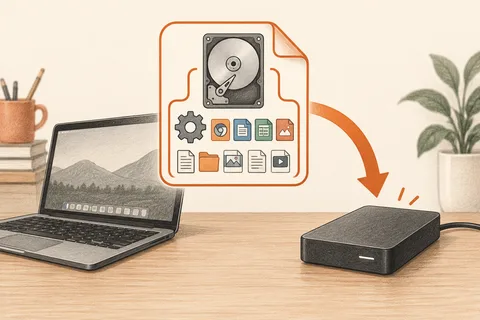
File History is useful when the problem is an earlier version of a document, rather than an entire computer that needs rebuilding. It keeps copies of selected personal files on another drive or a network location. Its value depends on what was included and whether the destination was available when the backup needed to run.
Before switching it on and forgetting it, choose a real folder you use. Check the current Windows instructions and the configured selection to establish whether that folder is covered. Do not assume that every folder on every internal drive is included. A project stored outside the usual personal locations needs particular attention.
Check the destination and the result
An external drive should be identifiable by more than its current drive letter. Give it a clear name and make sure there is space for changing versions, not merely one copy of today's files. When the destination fills, retention settings matter. Review those settings before removing anything manually from the backup structure.
Leave the destination connected long enough for a backup to finish. If you normally attach it only for a few minutes, a large initial backup may never complete. Look for the last successful run and any reported errors. A drive appearing in File Explorer shows that Windows sees it; it does not establish that File History has successfully protected your work.
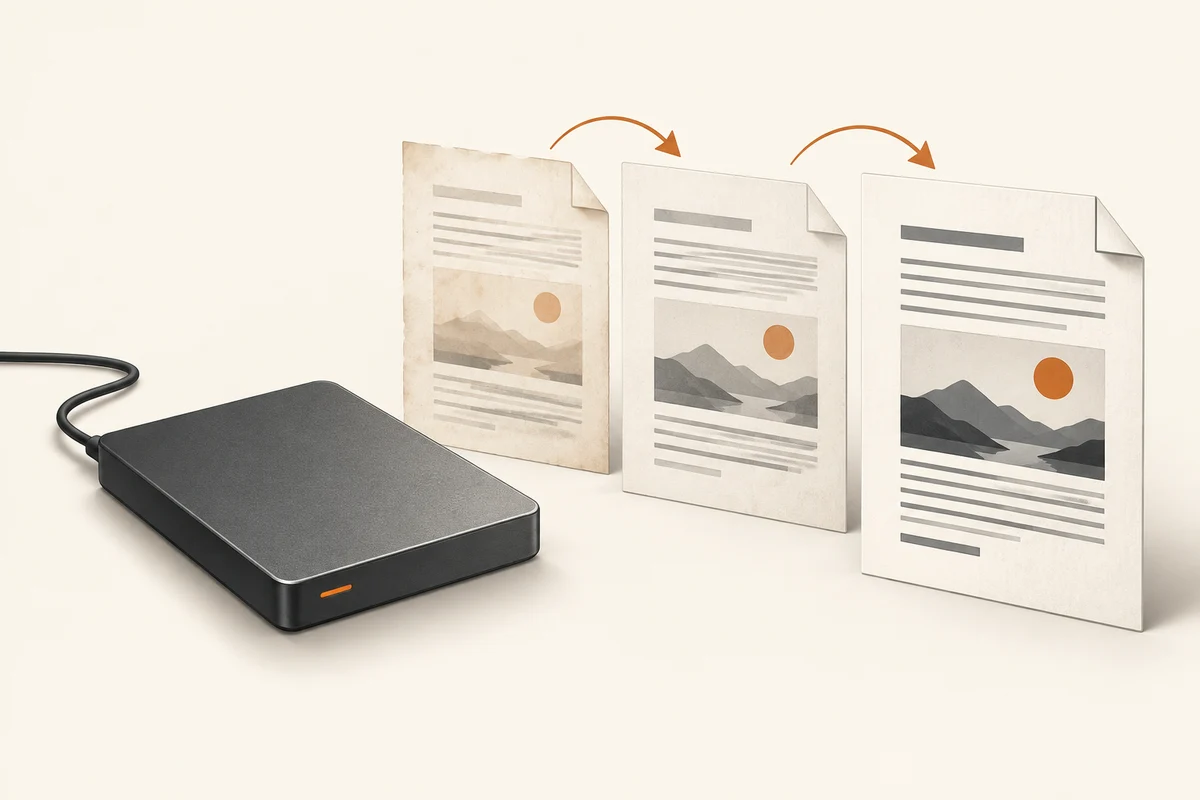
Try a disposable document. Save one sentence, allow a backup, change the sentence and allow another. Then open the restore interface and find the earlier version. Restore it to a separate location where the interface offers that option. This reveals whether the dates and controls mean what you expected without putting a working document at risk.
Know where this tool stops
File History is not a complete image of Windows, applications and every system setting. Keep installers, account details and any separate recovery arrangements in mind. It also cannot recover a version that was never backed up. A document created and deleted while the destination was unavailable may leave no useful historical copy there.
Review coverage after moving folders, adding a second internal drive or replacing the backup disk. These small changes are easy to overlook because the application can continue running while no longer protecting everything you intended. A known test file and an occasional restore are more informative than a reassuring name in the Control Panel.
Follow a renamed working folder
A useful check after reorganising your files is to create a small test document in the new working location. Let the next backup complete, edit the document and let another run finish. Look for both states through the recovery interface. This tests the location you now use rather than the folder that happened to be covered when you first enabled the feature.
If an expected version is missing, check the backup date and destination before changing the source file again. Was the drive connected? Did the scheduled task finish? Was the file already saved to disk at the time? A document left open with unsaved changes is not the same as a saved file waiting to be backed up. Write down the gap you found so you can distinguish a timing problem from a coverage problem.
For the first recovery, choose a harmless document and an alternate destination where possible. Compare the restored content with what you expected, then remove the test copy. This small exercise also teaches you how the interface handles an existing filename, while there is nothing important at risk.