One cable hides several jobs
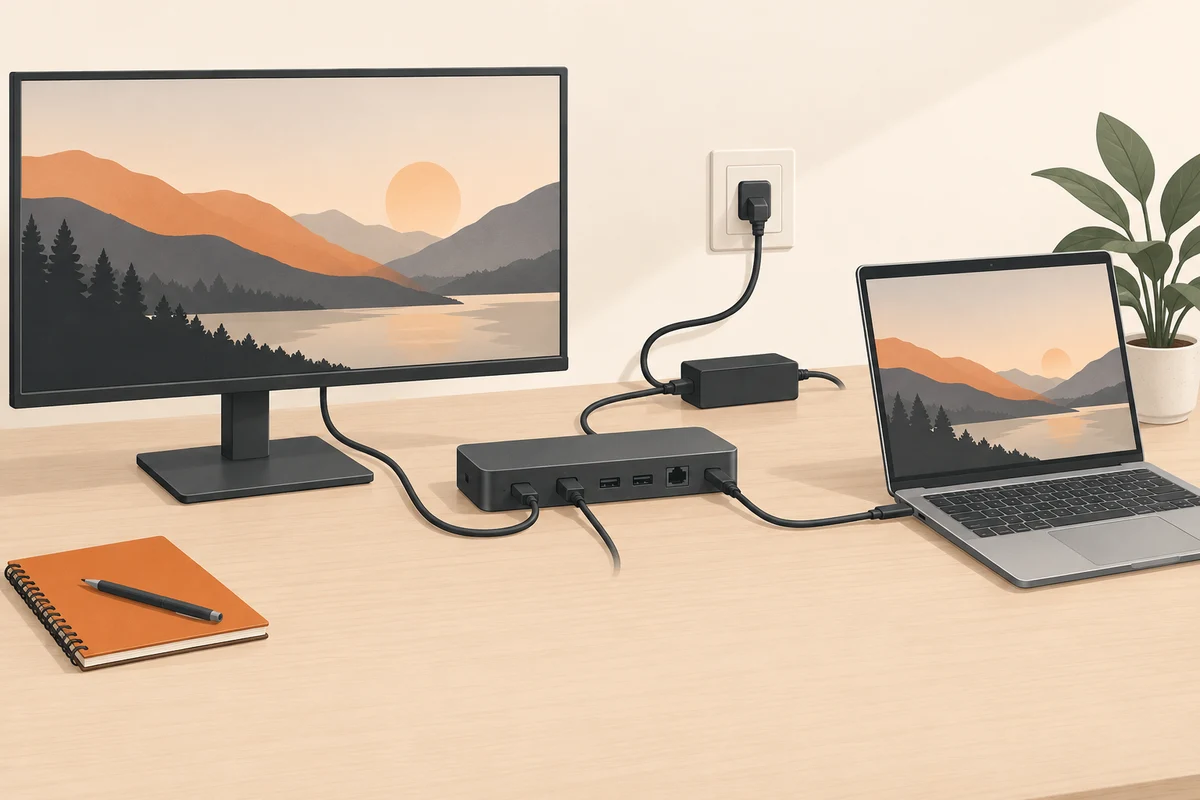
A dock can connect displays, storage, networking and power through one host cable. That convenience makes it tempting to treat the dock as a single feature. In practice, each job has its own requirements. A device may provide an excellent display connection while delivering less charging power than the laptop needs under a demanding workload.
Begin with the laptop's documented charging requirements and the ports through which it accepts power. Then read the dock's host power-delivery specification. The number printed on its power adapter may include energy used by the dock and attached peripherals, rather than describe what reaches the computer. Look for an explicit output figure for the host connection.
Check the full model combination
Some docking specifications distinguish between computers from the same manufacturer and other hosts. Do not assume that a maximum applies to every laptop with a matching connector. Identify the exact laptop, dock revision and supplied adapter. A compatibility table or manufacturer confirmation is more useful than a marketplace claim that the dock works with all USB-C devices.
Also check the host cable. A substitute cable must support the required data, video and power functions, not just have matching ends. Keep the supplied or approved cable with the dock. If it is detachable, label it before it becomes mixed with telephone charging leads. Replacing one cable can change several functions simultaneously.
Understand pass-through charging
Compact travel hubs often accept a separate charger and pass some of its power to the laptop. Read the hub's input and host-output limits and any stated power allowance for the hub itself. A charger that powers the laptop directly may produce a different result through the hub. The combination needs to be assessed, not just the individual labels.
Multiport chargers introduce another variable. Connecting a phone or tablet can redistribute available power between outputs. Check the charger's table for the exact occupied ports. If the laptop charges only when another device is unplugged, that observation points towards allocation rather than proving that the laptop battery is faulty.
Test under normal work
Connect the complete set of devices and run a representative task. Watch whether the battery level rises, remains roughly steady or falls over a meaningful period. An icon alone does not establish that the power balance is sufficient. A brief test while the computer is idle may miss a limitation that appears during a render or an intensive call with several accessories.
If the battery drains, compare the laptop on its original charger under the same workload. Follow the manufacturer's guidance about using separate laptop power alongside a dock; do not improvise an unsupported power arrangement. This comparison can separate a docking-power issue from a wider charging or battery problem.
Leave room for fault finding
Place the dock and adapter where heat can dissipate and cables are not under strain. Keep access to their labels and the laptop's direct charging port. A dock hidden behind furniture is inconvenient when a connection needs checking. Avoid covering the adapter with papers simply because the desk looks tidier that way.
When behaviour changes, note whether a new device, cable or firmware update was involved. Test the simplest documented configuration first, then add peripherals back individually. Firmware and drivers should come from the appropriate manufacturer. Repeatedly swapping every connection can produce a working setup without revealing which part caused the problem.
Finally, include the correct power adapter and cable when comparing used docks. A low purchase price without those parts may be misleading. Save the working combination in a short equipment note. That record is useful when replacing a laptop, because a dock that charged the previous machine comfortably may not meet the next one's requirements.