Find out where the sound is going
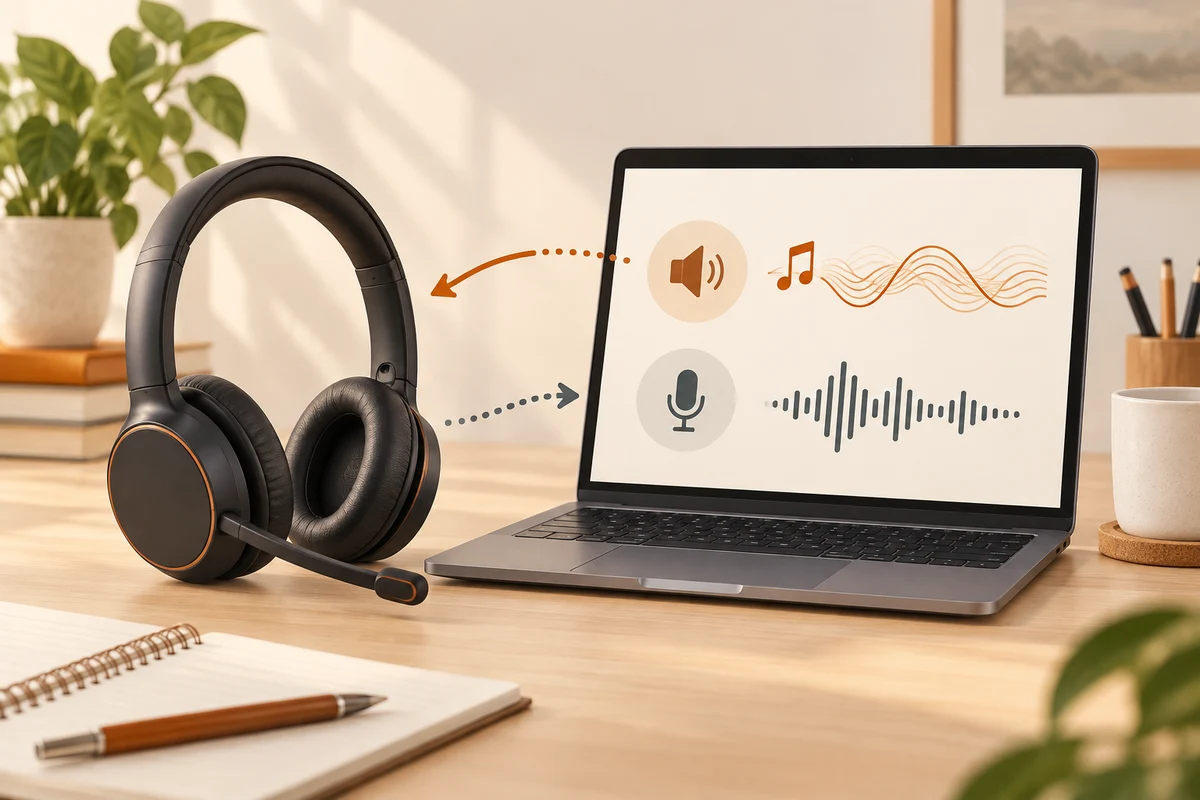
The headphones announce a connection, but sound still comes from the laptop. Check the selected output in Windows, then check the application's own audio setting. A meeting app can use a different device from the browser. Connected monitors and docks can add further outputs with names that are easy to confuse.
A familiar local audio file makes a useful first test. Check volume and mute controls on both the accessory and the computer. Begin at a moderate level so an output that suddenly starts working is not unexpectedly loud. Establishing the route comes before diagnosing the wireless link.
Playback and conversation are different jobs
Activating a Bluetooth headset microphone can change playback quality. The result depends on the headset, adapter, supported audio modes and software. There is no universal promise that every computer and headset combination delivers the same music quality while also using the microphone. Check what the actual devices support.
Compare ordinary playback with a test call. A change that occurs only during the call is a different clue from a complete audio failure. A separate USB microphone or a wired connection may suit a permanent desk. There is no need to buy equipment immediately, though, if the meeting app has simply selected an unintended microphone.
Make interruptions reproducible
Reduce the distance for a trial and stay on the same side of nearby walls. Disconnect other active headset connections if it is unclear which device is sending audio. Some models switch between a phone and computer, with behaviour determined by that model's features. An incoming phone call can also change what you hear.
For repeated problems, note whether they happen in one application, only with the microphone active, or even during local music playback. Then check the intended driver and firmware sources. Pairing again can clear an unhelpful saved state, but it is not a substitute for choosing the right output.
Before an important conversation, a brief test is more useful than a major setup change at the moment you join. Keep an available alternative in mind, such as a wired headset or the built-in microphone and speakers at a suitable volume. That lets the conversation continue while the underlying cause is investigated afterwards.