Watch what happens to a deletion
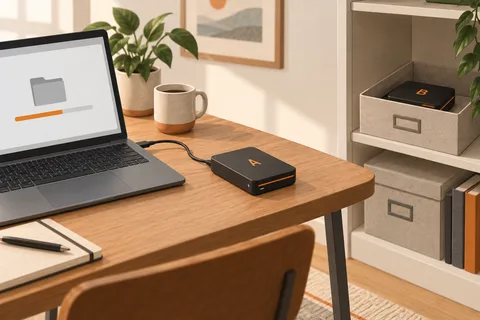
A folder appears on the laptop and on the external drive. That looks reassuring, but the important question is what happens next. If deleting a file on the laptop also deletes it from the other location, the two copies are following one another. Synchronisation helps keep work current. It does not automatically preserve a way back after a mistake.
The same distinction applies to a cloud folder. Some services retain deleted files and earlier versions, but those facilities have their own retention periods, account requirements and limits. A cloud icon alone does not tell you which history is available. Find the service's restore controls before relying on them.
A small experiment tells you more
Create a disposable text file in a test folder. Allow the normal process to finish, change the text, then let it run again. Can you retrieve the first version? Next delete the test file and look for a recovery option. Use material that has no value; there is no reason to experiment with family photographs or an active project.
Record whether the destination keeps independent versions, merely mirrors the current source, or offers a separate recycle bin. These behaviours can differ between two tasks in the same application. A setting called mirror may be deliberately designed to remove files that no longer exist at the source.
Also check direction. A two-way task can bring changes from another computer back to yours. A one-way task may protect against that particular route while still removing destination files to match the source. Neither label, on its own, answers the retention question.
Give each process a job
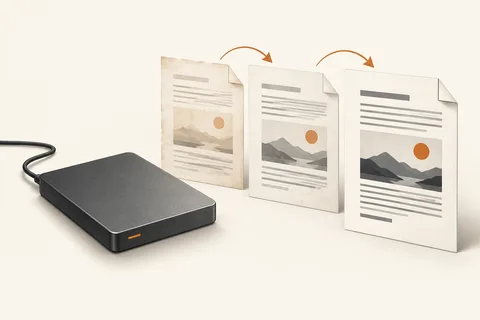
Use synchronisation when you want the latest working folder in more than one place. Add a separate versioned backup for changes you might need to reverse. An offline copy can add separation from changes affecting connected devices, provided it is brought up to date often enough for your work.
For example, a shared folder might carry current household documents while a separate drive keeps dated backups. The schedule should reflect how much recent work you could recreate. Keep recovery instructions with your records, and check that a copy can be opened without the original machine. The useful outcome is not the largest number of matching folders; it is a clear answer to where yesterday's file would come from.
A folder that moves between two computers
Suppose a laptop and desktop share a synchronised project folder. Editing the report on either machine is convenient, and both show the latest work. If you decide to tidy the desktop and delete an apparently redundant subfolder, that change may reach the laptop before you notice. Disconnecting the laptop afterwards does not bring back the earlier state. Recovery now depends on a retained version, recycle bin or independent backup, not on the number of devices that once displayed the folder.
Give the backup destination a different role and name. For example, the working project can remain in the sync folder while scheduled backups retain dated states on another device. Avoid editing the backup copy directly. When you want to recover a section, restore it to a temporary location and compare it with the current work. That preserves the convenience of synchronisation while giving mistakes a separate route back.