Do less before importing everything
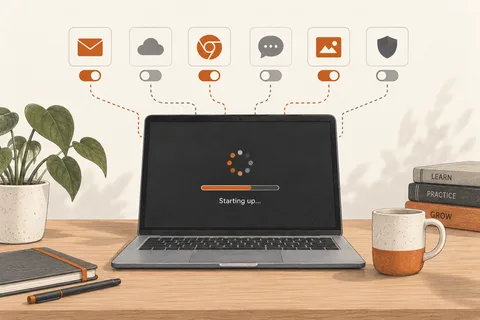
A new PC makes it tempting to install every familiar application immediately. Give the machine a short, relatively uncluttered starting period instead. Connect its power supply, use a network you recognise and have the account details you intend to use available. Read the setup choices individually. An optional service does not become necessary simply because it appears during the welcome sequence.
Choose the region and keyboard layout carefully. A wrong layout can remain unnoticed until a password contains punctuation. After signing in, try your frequently used symbols in an empty document, without typing the password itself. Check the clock and time zone as well before investigating apparently mysterious sign-in failures.
Establish a baseline
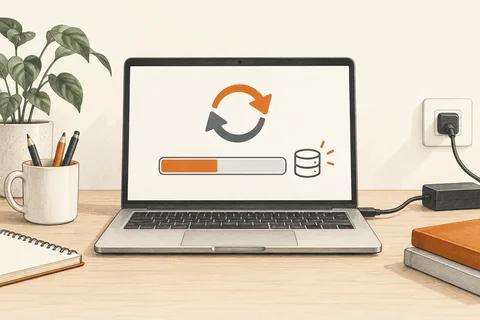
Open Windows Update in Settings and allow the offered updates to finish. Leave time for a restart. A computer that has just left its box may still have missed updates since it was manufactured. Fan noise and busy background activity during this stage are poor measures of how it will behave during an ordinary afternoon of work.
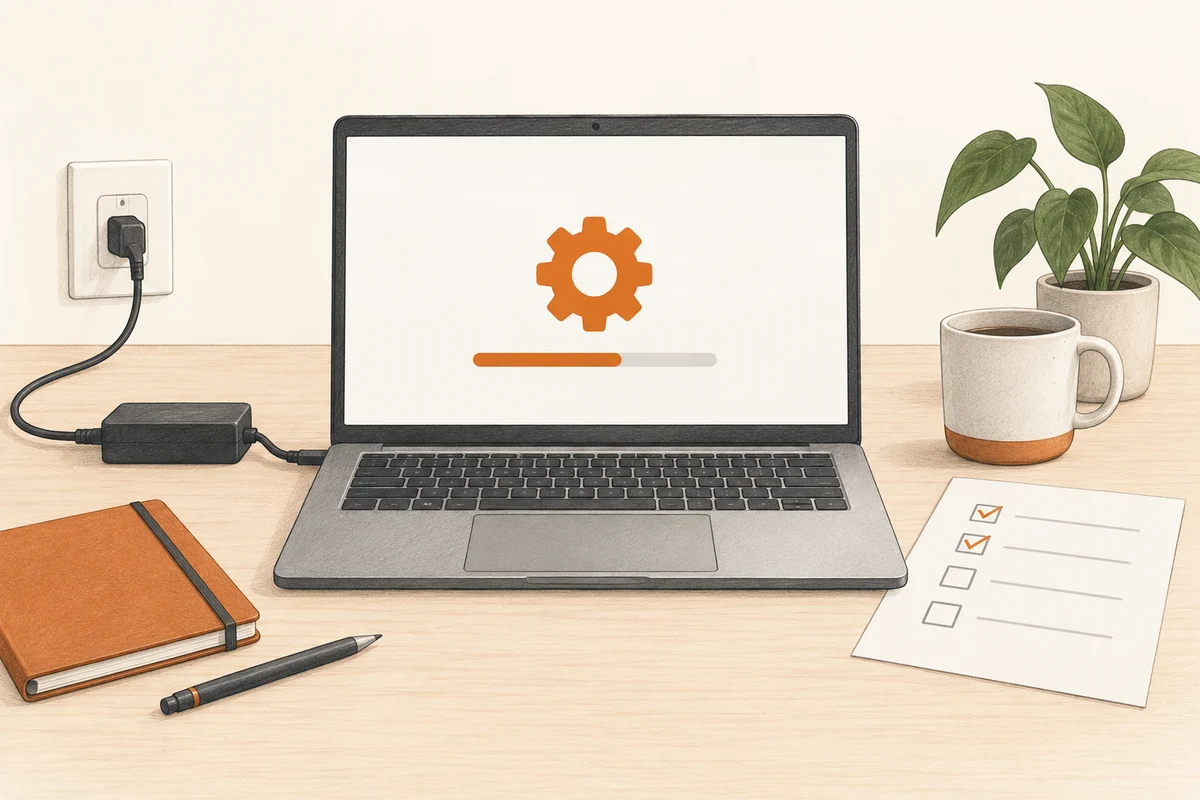
Then check the essentials before installing additional software: speakers, microphone, camera, wireless connection and the ports you need. Write down anything that fails. A fault present at this stage is easier to describe than one discovered after twenty installations. Keep the receipt and exact model identification somewhere accessible without relying on this computer.
Bring your work across in stages
Start by copying one representative folder from the previous machine. Open several files and establish whether the appropriate applications are installed. Transfer the larger collection after that small trial succeeds. Keep the originals until the transfer has been checked and another backup exists. Seeing a filename in a destination folder does not prove that the file opens correctly.
Obtain applications from their official publishers or another trusted distribution source. Do not carry over every old utility merely because it was installed before. A short list covering your browser, office applications and specialist tools gives you a clearer starting point and makes unexpected behaviour easier to trace.
Finish with a real task: edit a document, save it and find it again. Check where newly created files go by default. If that location involves cloud storage, understand whether the files are stored locally or downloaded only when opened. You do not need to visit every settings screen on the first day. You need a computer whose basic behaviour you understand, and whose original data has not been discarded before the replacement is ready.