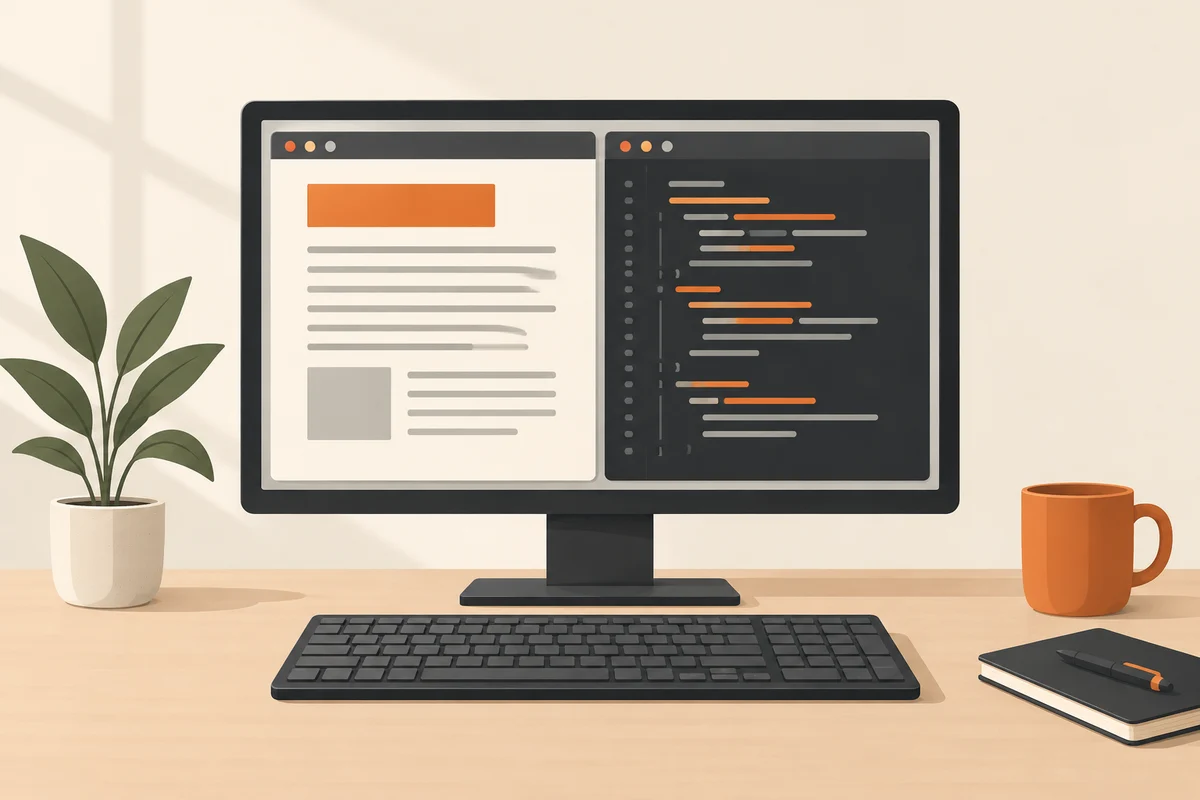
Two tasks sharing one surface
Reading instructions while changing settings becomes awkward when the two windows constantly cover each other. Another monitor is not always necessary. Start with an arrangement that keeps the relevant passage visible while leaving enough room for the working application. Giving each window half the screen is a starting point, not an obligation.
Windows provides snapping controls for arranging windows. Drag a window towards a screen edge or use an appropriate Windows-and-arrow-key combination. Windows 11 also offers Snap layouts, including through the maximise control. The useful layouts available depend partly on the amount of screen space. Try the built-in arrangement before installing a separate window-management tool.
Allocate room according to the content
A spreadsheet with many columns may deserve most of the width, with a narrow reference window beside it. Comparing two texts may work better with similar widths. Test with the actual material. A symmetrical empty desktop tells you little about whether lines will be cut off or constant horizontal scrolling will be required later.
Change window sizes before reducing text size or screen resolution. Tiny text technically fits more material on the screen but makes it harder to read. Collapsing a rarely used sidebar inside an application can also recover space. That targets the working area more precisely than shrinking every interface element across the computer.
Keep occasional switching simple
A third application used only occasionally does not always need its own visible section. Switch to it with Alt and Tab when needed, then return. This keeps the principal task clear. Trying to display every open window simultaneously on a small screen often produces several miniature workspaces that are difficult to use.
If one application will not snap as expected, inspect its minimum window size and its own display behaviour. Some specialised tools and dialogs act differently from ordinary application windows. That is not automatically a monitor fault. There is little reason to change display drivers when only one unusual dialog is affected.
Finish by performing a real sequence: consult the reference, transfer information and check the result. If you spend more time rearranging windows than working on the content, the arrangement is too elaborate. A successful pair of windows can look unremarkable. What matters is that the information stays where you need it throughout this particular task, and that switching away does not require rebuilding the entire workspace afterwards.