More pixels need not mean smaller text
A high-resolution display can produce sharp lettering while making interface controls uncomfortably small. Reducing the resolution substantially is not always the right response. Resolution changes the number of image pixels being displayed. Scaling changes how large many interface elements appear within that area.
In Display settings, first check which monitor is selected. With two screens, an accidental adjustment to the wrong one can make the whole arrangement confusing. Begin with the recommended resolution, then try an offered scaling level. Keep a typical document and a frequently used application open during the comparison rather than judging only the Settings window.
Distinguish three separate controls
If everything looks too small, system scaling is a useful place to start. If only one webpage is difficult to read, browser zoom may be enough. If text in a particular application is the problem, inspect its own display preferences. This distinction prevents a local difficulty from changing the entire desktop unnecessarily.
Larger zoom means less content fits at once. That is the space requirement of a larger presentation, not a fault. Check whether sidebars or unnecessary tool panels can be collapsed as well. Readable text with fewer visible controls can work better than a densely packed interface that requires leaning towards the screen to decipher it.
Compare older applications patiently
Some older applications respond differently to scaling than newer ones. Close and reopen the affected program after making a change. If Windows requests signing out and back in, save your work first. Compare the same view afterwards. One blurry application does not automatically establish that the monitor itself is poor.
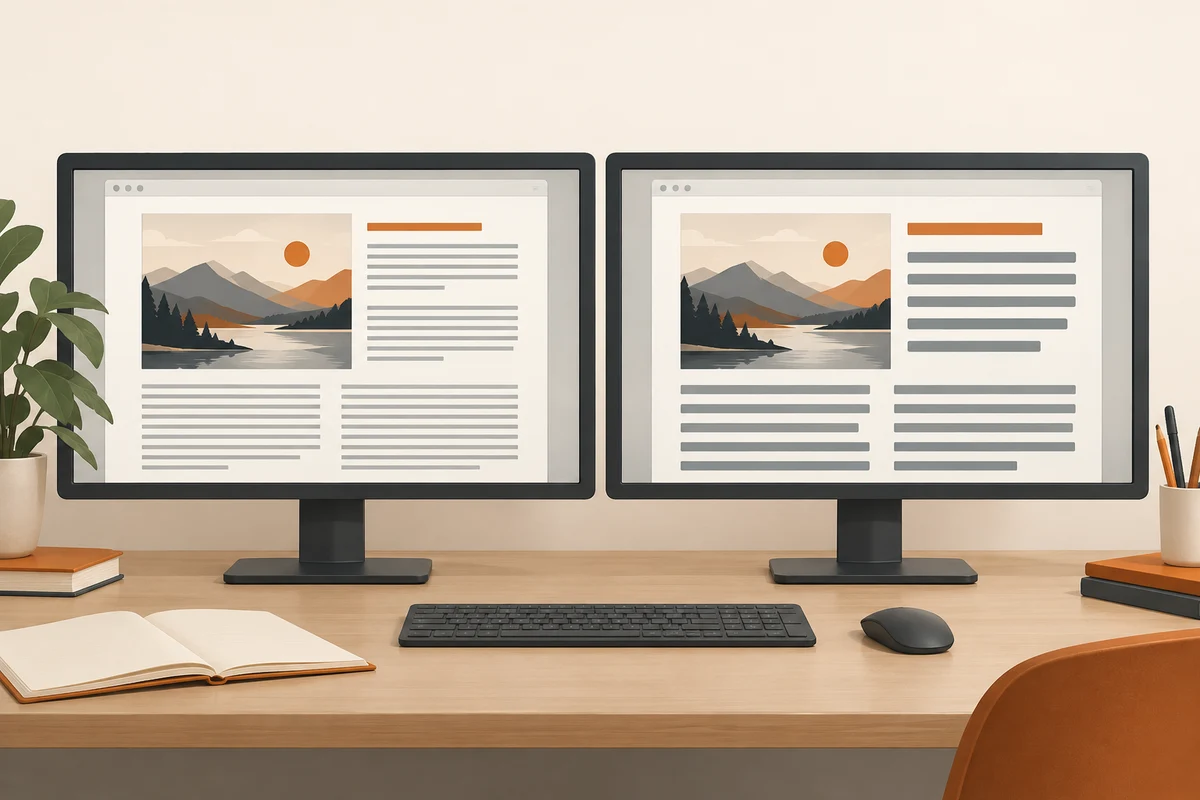
Different scaling levels can make sense across multiple screens, especially when pixel density and viewing distance differ. Move a window between the monitors and observe readability and changes in apparent size. Find a useful setting for each display rather than trying to make the percentages identical merely for consistency.
Write down the original values before experimenting with custom settings. That gives you a specific route back if a change makes controls harder to reach. In everyday use, the relevant question is whether labels are readable from your normal sitting position and important dialogs remain fully accessible. A technically supported resolution alone cannot answer what arrangement works well at your particular desk.