Put the capsule in the conversation
A USB microphone at the far edge of a desk hears the room as well as the person speaking. Raising its input level makes both more audible. Before adjusting gain, check which part of the microphone is intended to face your mouth. Some models are spoken into from the end; others receive sound from the side. The manufacturer's diagram is more reliable than the direction suggested by the logo or stand.
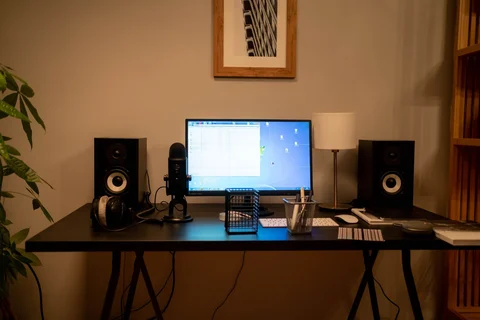
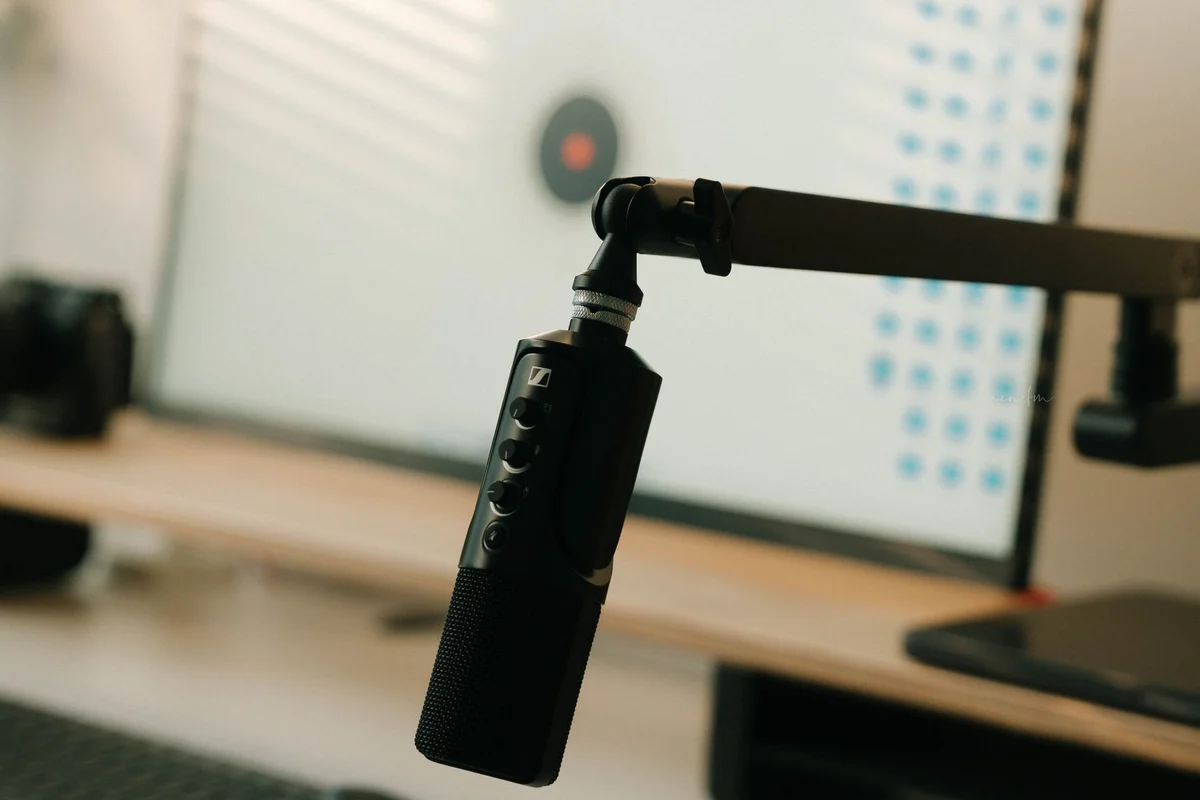
Bring the microphone into a comfortable speaking position using its stand or a compatible arm. Follow the model's distance guidance, then make a short recording at your normal speaking volume. Listen for the voice, keyboard noise and room reflections. Move the microphone rather than leaning towards it throughout the call. A position you can maintain naturally is easier to use than one that works only while you sit unusually still.
Keep desk vibration out of the recording
A stand placed beside the keyboard may transmit taps from typing or movement of the desk. An appropriate isolation mount or an arm attached to a suitable support can reduce that route, though it will not remove sound travelling through the air. Check that the arm clamp fits the desk and does not damage a hollow or fragile surface. Leave enough cable slack for movement without pulling the USB port.
Place a pop filter or the supplied windscreen as instructed if breath sounds create sudden thumps. Moving slightly off the direct breath stream can also help. Do not compensate by moving so far away that the room becomes louder relative to the voice. Make one change and record again, using the same short passage each time.
Confirm the input in the actual application
Select the USB microphone in the calling or recording program. The operating system may have recognised it while the application continues using the laptop's built-in microphone. Check the input meter, and leave headroom so louder words do not overload the recording. Automatic level controls can alter this behaviour, so test with the settings you intend to keep.
Use headphones during the test if speaker output is entering the microphone. Listen to the saved recording, not only the live meter. A healthy-looking level does not reveal room echo or a fan beside the capsule. Once the arrangement works, note the position and gain setting. Reproducing a known setup is more useful than chasing a different adjustment before every call.