Enough context without the entire desktop
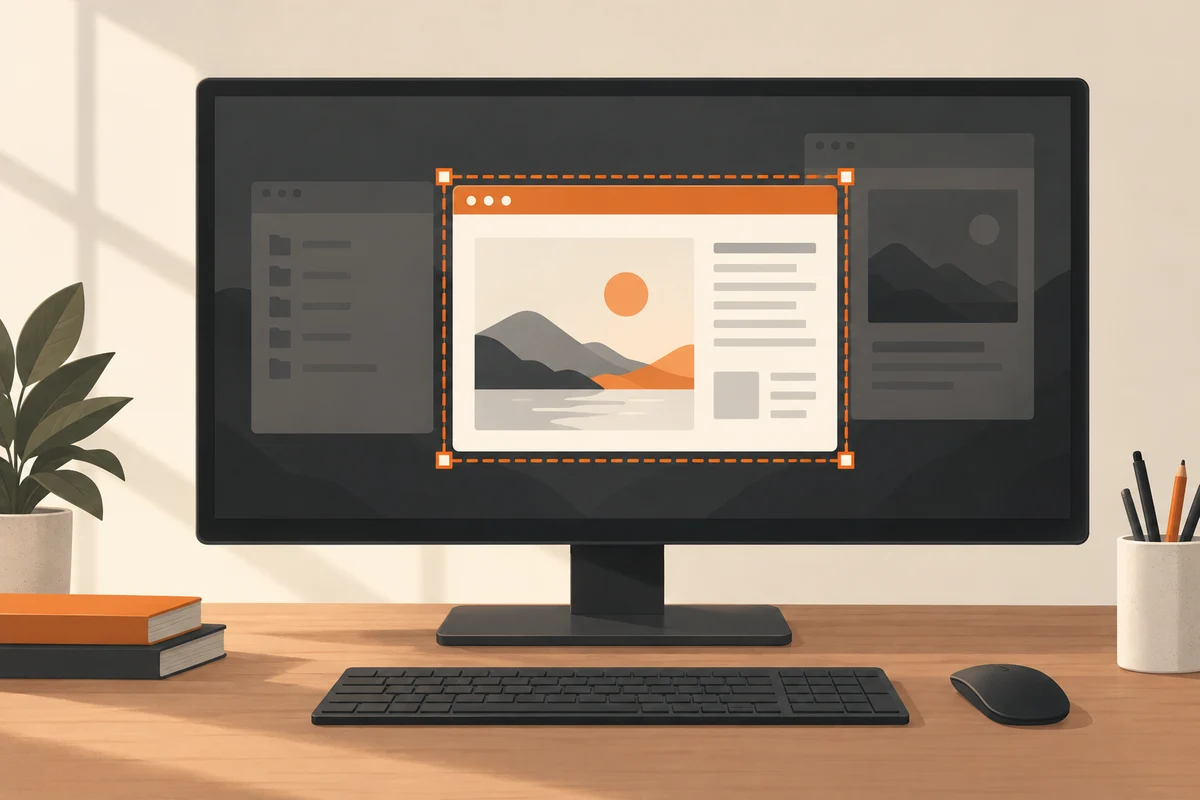
When showing a fault, a photograph of the whole monitor is often harder to read than a direct screenshot. Choose a region containing the complete message and enough context to identify the application. An isolated, cropped error number can be as unhelpful as a huge image with a tiny dialog in its centre.
Windows, Shift and S opens the Snipping Tool capture overlay. Choose the appropriate region and inspect the result afterwards. For an open menu, the application's delayed capture can give you time to prepare the menu before the image is taken. Available capture modes depend on the installed version, so use the controls actually present on your computer.
Remove distractions before sharing
Close unnecessary windows and hide private information before taking the image where possible. This includes email addresses, document names, account information and notifications. A quieter screen is easier to explain and needs less editing. If the error message itself contains sensitive material, work on a sanitised copy of the image.
Use a genuinely opaque cover or a purpose-built redaction feature for information that must be removed. A translucent highlighter can leave text readable. Save the edited result as a separate image and open that actual file again. Do not rely only on the editing application's preview before sending it to someone else.
Add a short explanation
A screenshot records a state, but rarely the action that preceded it. Add a sentence explaining what you clicked and what you expected. If several stages matter, give the images understandable names and put them in order. Ten unlabelled captures can make a simple support question unnecessarily difficult to follow.
For small text, choose an image format that avoids strong compression artefacts; PNG is a reasonable choice for many screenshots. Do not shrink the image until the message becomes unreadable. Equally, the recipient does not need a copy of your entire second monitor when one small window contains the relevant information.
Keep important error captures with a date and a brief description. Remove redundant copies deliberately later, especially when personal details remain in them. A screenshot documents a visible state rather than supplying a complete diagnostic record. Its value is making a specific question more precise, not explaining every technical cause on its own. The accompanying description is what connects that image to the problem you are trying to solve.
Make an error image useful to another person
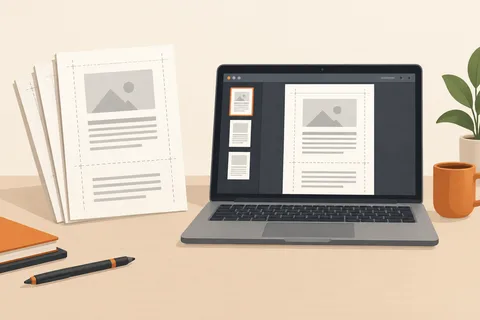
For a support request, a tight crop can be more useful than the whole desktop. Include the complete error and enough surrounding interface to identify the application. Do not crop away a code or important button. Explain in the message what action immediately preceded the problem. An image records a state; the sequence that produced it often needs words as well. This combination gives the recipient something concrete to investigate.
When removing personal details, edit a copy and cover the information completely. A translucent highlight may leave text readable underneath. Save the finished image as a separate file and reopen that exact file before sending it. Check notifications at the edges, personal names in file paths and unrelated browser tabs. Inspecting the actual attachment also prevents sending the unedited original by mistake. Do not assume that the picture currently visible in an editing application is the file selected in your message.