Saving is not a visual check
A PDF is often treated as a finished result. A successful save, however, initially proves only that a file was created. A wide table may lose its right-hand columns, a webpage may print its navigation, or a form may contain empty fields. Open the generated file before sending it or treating it as an archive copy.
If the application has a dedicated PDF export, inspect that first. Depending on the software, it may preserve document structure and other properties better than a print-based route. Microsoft Print to PDF is a virtual printing destination: it creates a file from the print output rather than producing paper. What survives that process also depends on the application doing the printing.
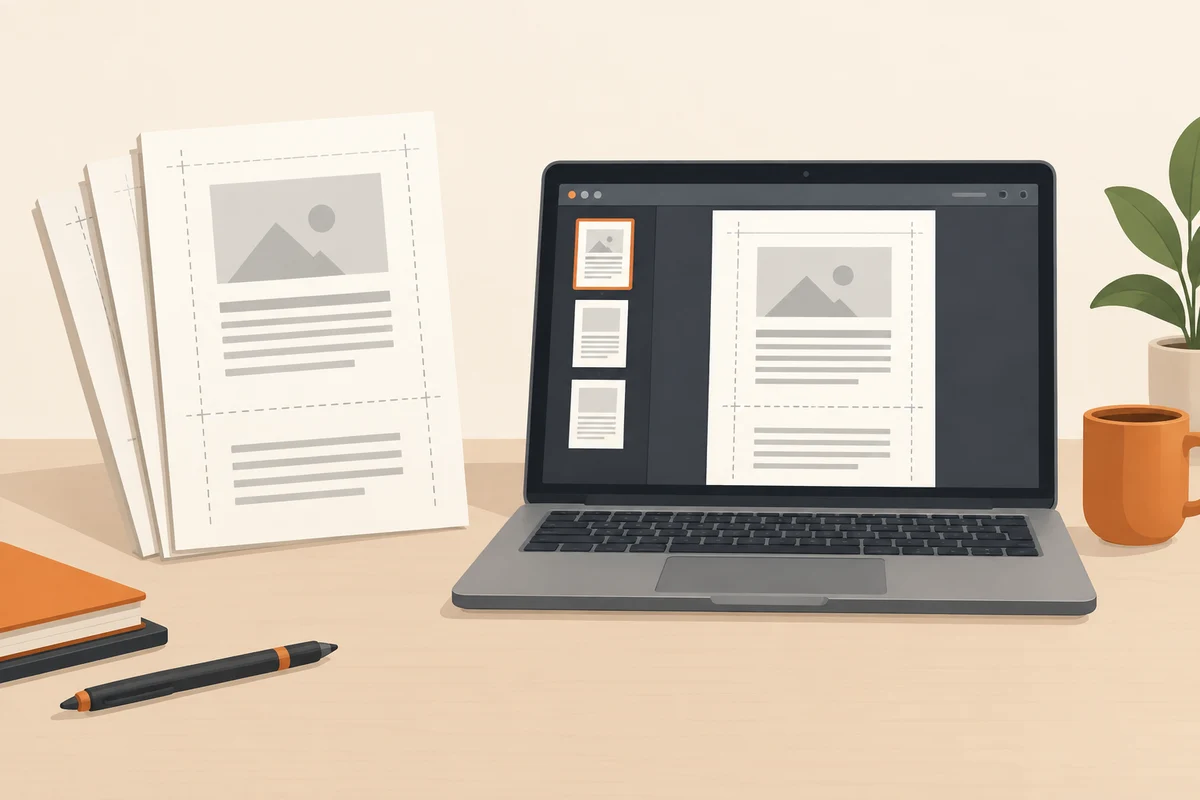
Preview the selected material
Before saving, check paper size, orientation and page range. For a spreadsheet, establish whether all intended columns appear on the appropriate pages. A heavily reduced printout can be complete yet unreadable. Several sensibly divided pages may be better than one page compressed until its contents are difficult to decipher.
For webpages, inspect headers, footers, backgrounds and the content visible in the preview. A signed-in account page can contain personal information that does not belong in the resulting document. Exclude it through an appropriate content selection where possible rather than relying on covering it afterwards. Hidden or dynamically loaded portions may also print differently from their appearance in the browser.
Open the result independently
Save under a clear name in a known location. Close the preview and open the actual file in the intended PDF reader. Browse all the way to the final page. Search for a distinctive phrase and check important characters, images and tables. In a long document, the beginning, section boundaries and ending are particularly useful inspection points.
Consider how a recipient will use the PDF. A scanned image of text may look readable without being searchable. Interactive fields and links can change according to the creation method. Explicitly test any function you need rather than inferring it from the extension. Accessible documents require additional checks of document structure; a visually correct page alone does not establish accessibility.
Separate the original from the output
Keep the editable source apart from the PDF that was sent. A later correction can then be made in the source and exported cleanly again. Choose a name showing the subject and, where useful, the version, rather than accumulating a chain of final-new-really-final suffixes. A date can help distinguish recurring editions of a document.
Before sending, open the actual attachment you have selected. Two similarly named files in the same folder are an easy source of mistakes. For confidential material, include comments and document properties in the review. This need not become an elaborate approval process. It is a short check that recipients will receive the same complete, appropriate output you intended them to see, rather than an earlier draft or a misleading preview.