Begin with the machine's identity
Memory shopping becomes confusing when a retailer lists only capacity and speed. Those numbers do not establish compatibility. Find the exact computer or motherboard model first, including any revision that affects support. A notebook series can contain several internal designs, so a family name on the lid may not be specific enough. The service manual and supported-memory information are the starting point.
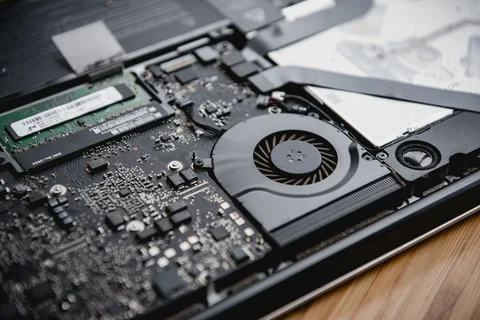
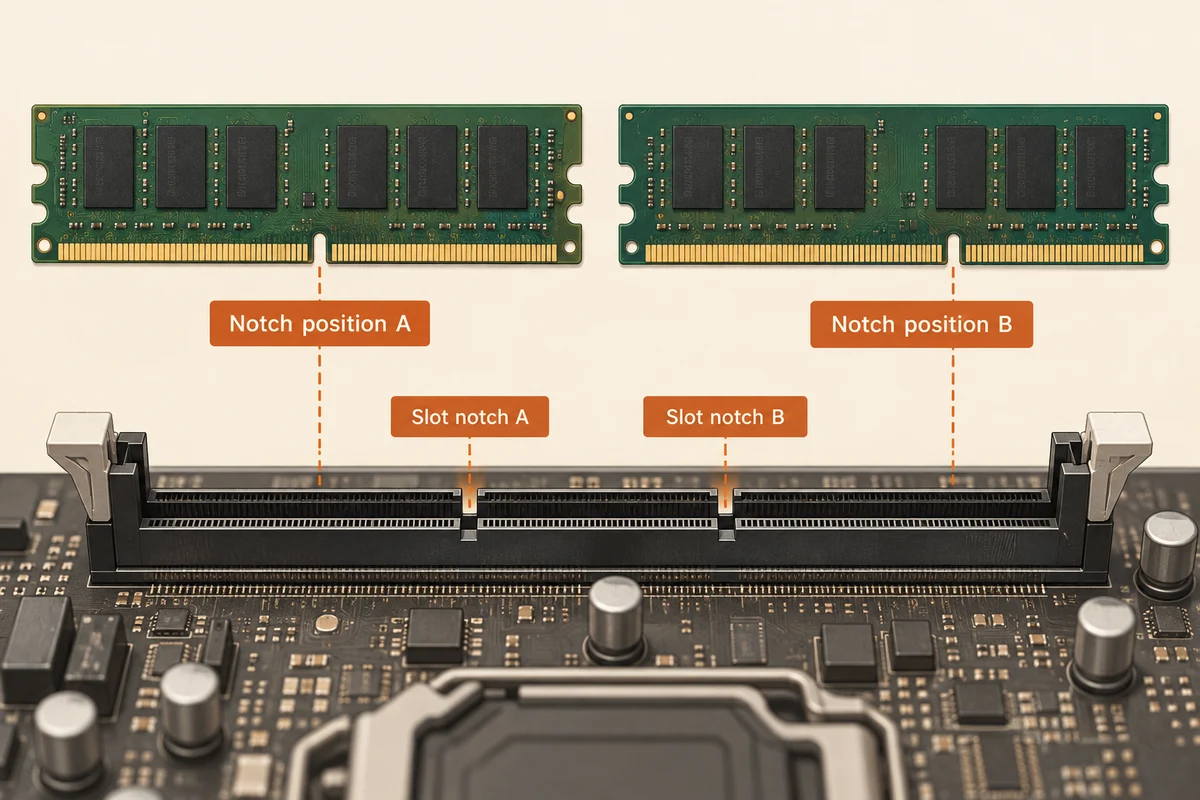
Record the memory generation and module format. Desktop DIMMs and laptop SO-DIMMs are physically different, and successive DDR generations are not interchangeable simply because they share a capacity. Some systems use soldered memory instead of removable modules. Others combine soldered memory with a slot. In that case, the upgrade choices are constrained by the complete arrangement.
Capacity has several limits
Check the total supported capacity, the capacity supported per slot and the number of available slots. An empty-looking space in a photograph is not proof of a usable memory socket. Confirm the specification or inspect the machine through the documented service procedure. If all slots are occupied, reaching the intended capacity may require replacing existing modules rather than adding one.
Read any restrictions involving module organisation, ECC support or supported configurations. Server and workstation memory can look familiar while being unsuitable for an ordinary desktop. When the motherboard vendor publishes a tested-memory list, use it as evidence of tested combinations rather than assuming every unlisted product is necessarily incompatible. A vendor compatibility guarantee can also clarify responsibility if a recommended upgrade fails.
Speed is a negotiated result
The advertised module speed is not always the speed the system will use. Processor support, motherboard firmware and configured profiles can limit or alter operation. Mixing modules may cause the system to use a common supported setting, and a successful boot does not prove every mixed combination is stable. For a straightforward upgrade, a matched kit supported for the system reduces uncertainty.
Keep the packaging and original modules until the new configuration has been checked. Confirm the recognised capacity in firmware or the operating system, then run a suitable memory diagnostic and your ordinary workload. If errors appear, return to a known working arrangement before changing several settings. An upgrade should make the machine more dependable, not turn routine work into an experiment with unexplained crashes.
Compare two upgrade routes before buying a module
Consider a computer with both memory slots occupied. Reaching a larger total may require replacing both modules. Adding the price of one module to the budget would therefore understate the cost, even if its capacity is the amount you hoped to add. Write the present capacity per slot and the proposed capacity per slot side by side. This simple layout exposes the difference between adding memory and replacing it.
Now compare a complete supported kit with retaining one existing module and buying another. The mixed route may look cheaper, but its suitability depends on the actual parts and platform. Ask for a compatibility statement covering that combination. Similar speed and capacity labels do not establish identical internal organisation or tested operation. If the seller only guarantees the new kit as a pair, keep that condition in the comparison.
Check the return process before installation and keep the original arrangement identifiable. If the new memory is recognised but errors occur later, describe the exact configuration and test conditions to the supplier. Do not submit only a screenshot of the total capacity. A diagnostic record with module part numbers and slot positions helps distinguish an unsupported combination from a defective individual part without assuming either conclusion in advance.