Begin with the shared folder
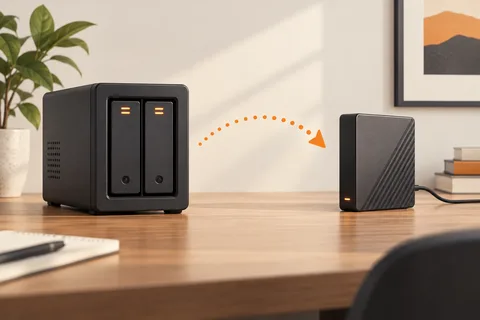
A home NAS earns its place when there is a recurring need for files to live somewhere other than one person's laptop. Two computers might need the same photo collection; a desktop might back up automatically while a portable computer is away. Write down those uses before comparing processor speeds and drive bays. If all you need is an occasional copy of one laptop, an external drive may solve the task with less administration.
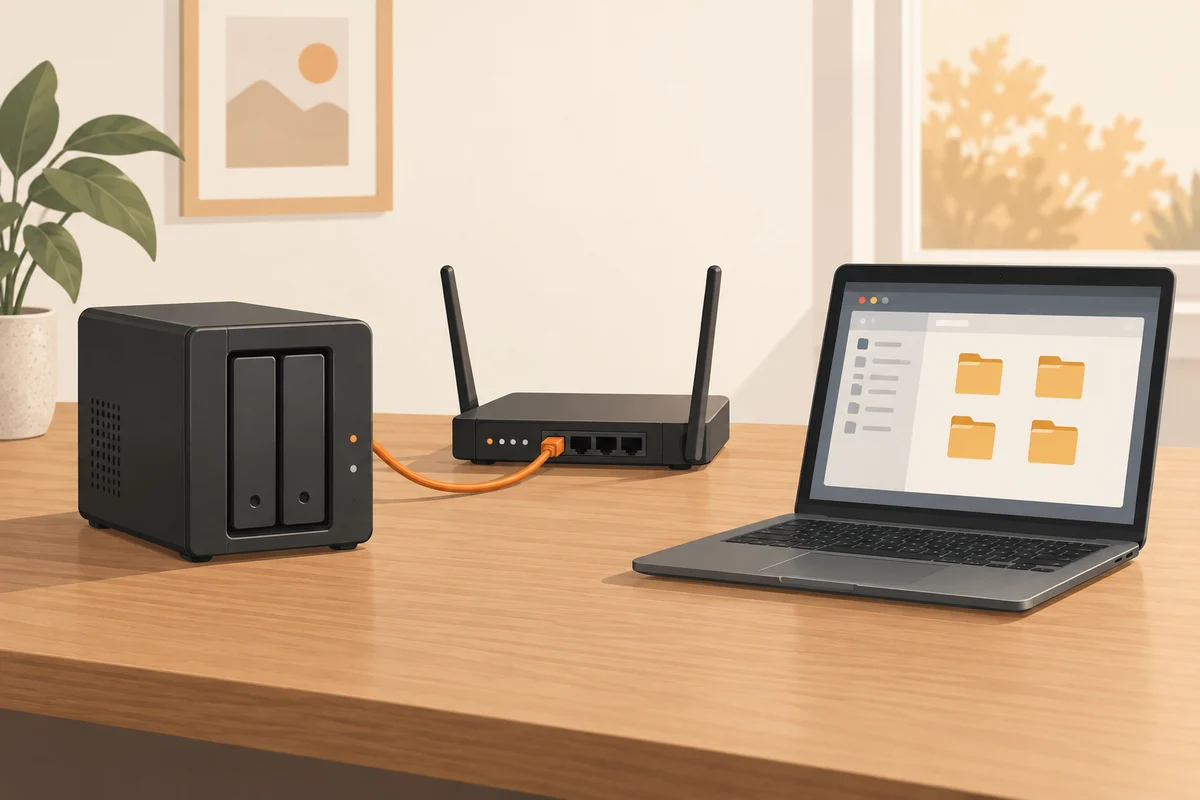
A NAS is a small computer with storage, an operating system and network services. It needs updates, accounts, working drives and a plan for failures. Its network connection also matters: an expensive disk arrangement cannot remove the limits of a weak wireless connection between your laptop and router. Connect the NAS by Ethernet where the equipment and location permit, then judge performance from the places where you actually use your computers.
Plan access before filling it
Give household members separate accounts when they need different permissions. A shared photo library and a private document folder should not accidentally become the same unrestricted share. Try the access rules using an ordinary account, not only the administrator login used during setup. Keep administration credentials separate from routine file access where the system allows it.
Start with one modest folder and check the whole route: copy files, disconnect the computer, reconnect later and open them. Check how the folder appears after the computer restarts. If it will store backups, verify that the chosen backup software supports that destination and can restore from it. A visible network folder alone does not establish that every application can use it safely.
Count the cost of keeping it running
Include disks, a separate backup destination, electricity and eventual replacements in the budget. Consider where the unit will sit: mechanical drive noise that is unobtrusive in a hallway can be distracting beside a bed. Leave ventilation space and avoid putting the enclosure where drinks, pets or a loose power lead are likely to cause trouble.
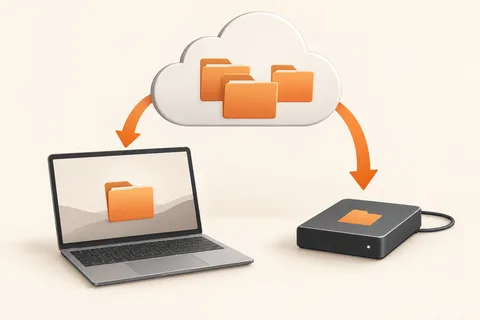
Multiple disks may improve availability, depending on their configuration, but they do not make a separate backup unnecessary. A mistaken deletion can affect the shared data immediately. Keep another recoverable copy outside the NAS, with an offline or separate-location copy for files that cannot be replaced. Remote access is a further project, not an automatic requirement. Leave it disabled until you have a specific need and understand the manufacturer's supported security settings.
A household example
Suppose one desktop holds the family photographs and two laptops need occasional access. Start by deciding whether the NAS becomes the main library or merely a backup destination. Those roles lead to different routines. If it becomes the main library, deleting the desktop copy leaves the NAS as the only working location unless another backup has been arranged. If it is a backup destination, editing files directly inside the backup folder can undermine the separation you were trying to create.
Write a short note describing the chosen role, the shared folder names and the person responsible for updates. Keep recovery information somewhere accessible if the administrator is away. This is especially useful when one technically interested household member normally does all the maintenance. A storage system that nobody else can access during an emergency creates an avoidable dependency.
Before moving the full library, try a week with a small selection. Open files from each intended computer and check whether ordinary users can save changes only where expected. Confirm that the separate backup still runs after a NAS restart. These modest trials reveal everyday friction more clearly than a specification sheet.