Small on the desk, larger as a system
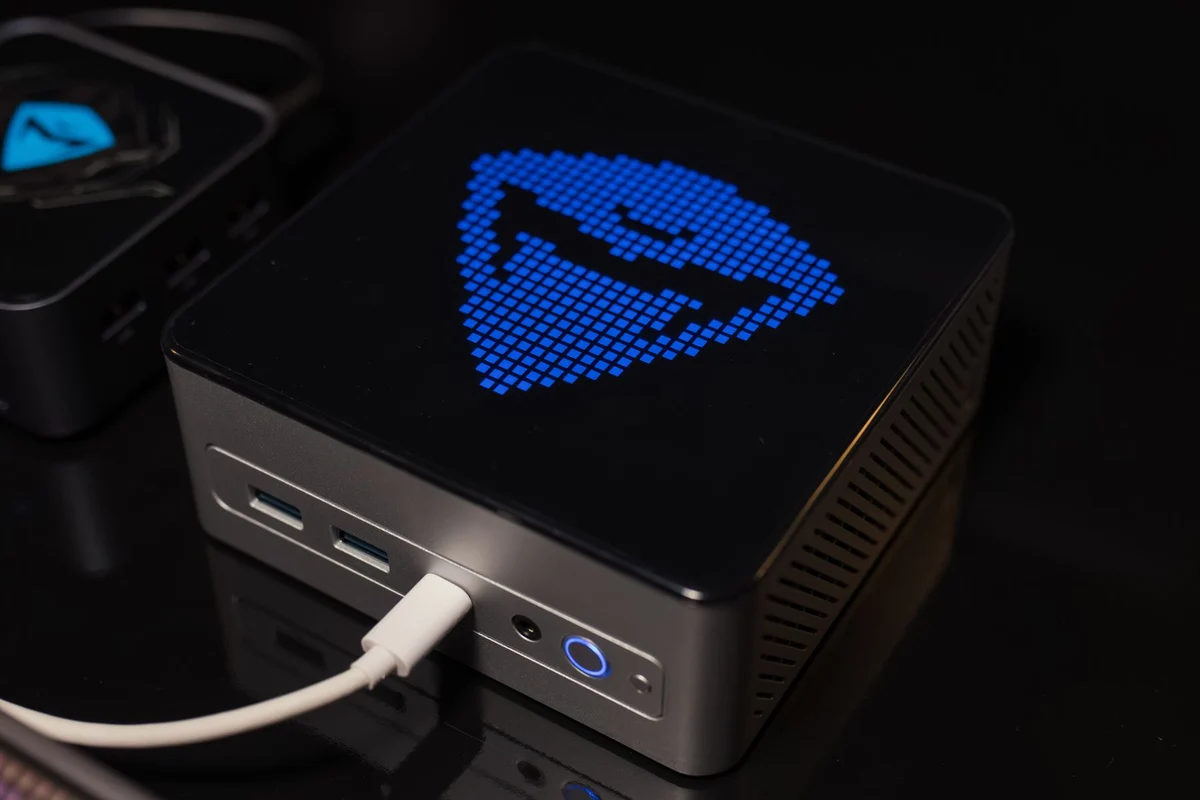
A mini PC can free space, but the box is only part of the workstation. It still needs a display, input devices and usually an external power adapter. Put those items into the space and cost calculation. Mounting the computer behind a monitor can look tidy while making its power button and frequently used ports harder to reach.
Start with the work it will perform. Documents, media playback and a small development setup create different requirements from sustained rendering or large local datasets. Compare the exact configuration rather than treating all small computers as low-power office machines. Cooling design can affect both noise and sustained speed in a case with limited room.
Read the expansion diagram
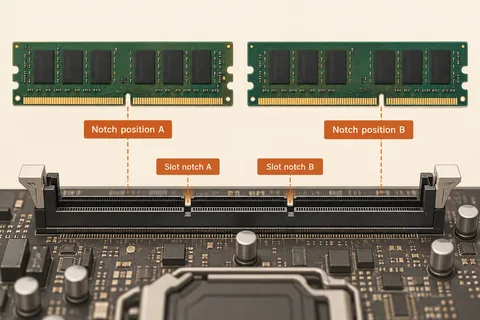
Check whether memory and storage are included. Some listings describe barebones systems that require additional components and an operating system. For those machines, verify the supported memory format and drive dimensions before ordering parts. Two storage sockets do not necessarily accept the same type of drive, and the available space may exclude a drive with a large heatsink.
Expansion through external devices deserves attention too. Count the ports needed for a keyboard, mouse, backup drive, webcam and other regular equipment. Identify which connections offer the required data speed or display output. A hub may add sockets, but it cannot remove every bandwidth or power constraint on the upstream port. Leave an accessible connection for occasional use.
Air and access still matter
Do not hide the machine in a closed drawer merely because it fits. Locate its intake and exhaust openings and follow the manufacturer's clearance guidance. A mounting bracket should not obstruct ventilation. Consider where warm air will go when the computer sits close to the back of a monitor or against a wall.
Before buying, find the service manual and replacement power adapter specification. A compact machine with accessible storage and a documented opening procedure is easier to maintain than one whose construction is unclear. If it will run unattended, also investigate recovery after a power interruption and how you will reach it when the network fails. Small size is useful when the practical details remain accessible.
Compare a complete system with a barebones offer
A low advertised price may refer to a box without memory, storage or an operating system. Write out the missing parts using the manufacturer's supported specifications, then add installation and setup time. Compare that completed total with a configured machine. A barebones offer is not necessarily poor value, but it should not win a comparison by leaving necessary items out of the basket.
Check what happens when the intended storage is fitted. Does a second drive require a bracket or cable that is included only in certain packages? Is there enough physical space for the chosen drive's heatsink? A storage interface name cannot answer those mechanical questions. Locate the supplied-parts list and installation diagram before ordering accessories separately.
For a machine that will sit behind a display, rehearse three actions on paper: pressing its power button, connecting recovery media and replacing its power adapter. If every action requires removing the monitor, reconsider the mounting position. The compact arrangement should save usable space without turning a simple service task into a dismantling job.