The numbers describe a physical size
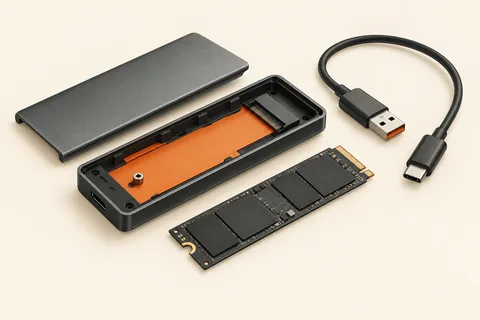
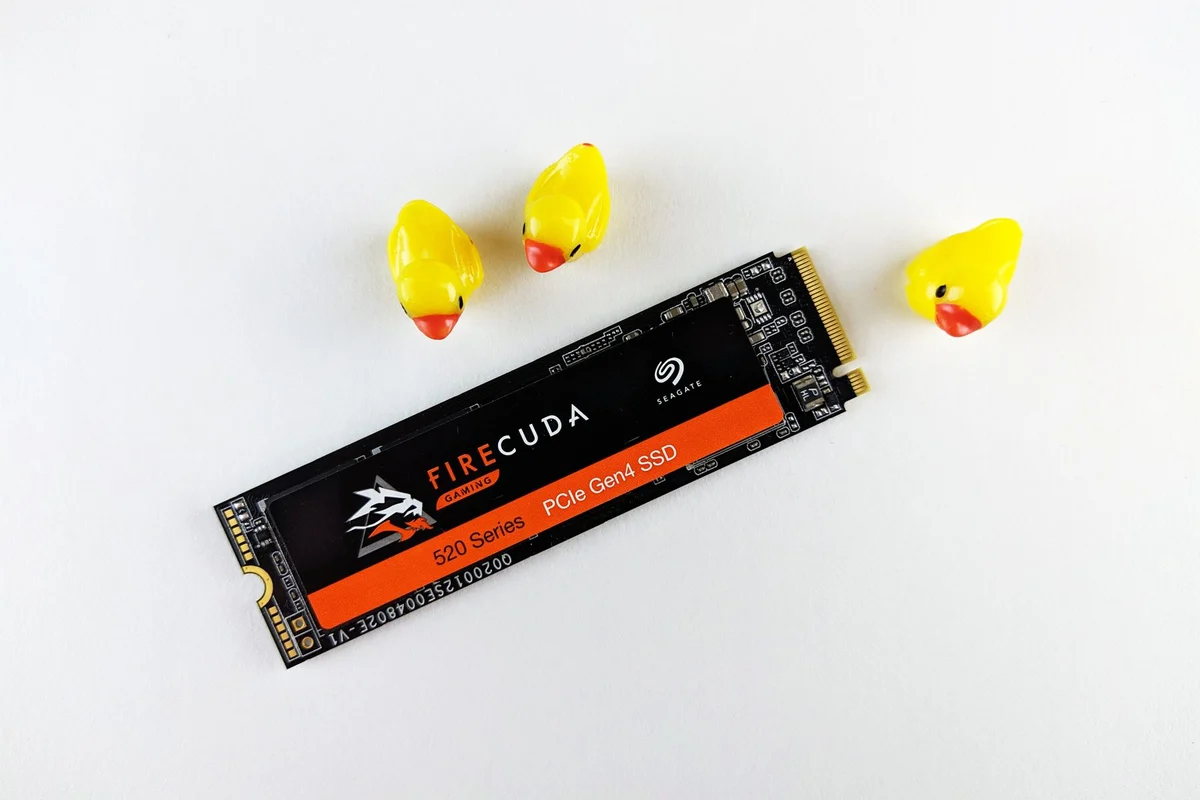
For an M.2 SSD, the familiar designation 2280 means 22 millimetres wide and 80 millimetres long. A 2230 module is much shorter. These numbers help with the physical comparison, but they do not establish the interface or the performance. Two modules of the same length can be intended for different connections.
Start with the device documentation. A photograph of the installed drive can help, but it is not a substitute for a compatibility specification. Some computers have several mounting positions; others accept only one length. A used computer may also be missing a screw or standoff. These small parts need to match the mounting system. An arbitrary longer screw is not a sensible substitute.
Check clearance as well as length
Look for space both above and beneath the module. A double-sided drive may fit differently from a single-sided one in a very thin computer. Thermal pads and covers are part of the installation too. The computer manufacturer's requirements take precedence over the assumption that every drive of the same length must fit.
A fitted heatsink may be intended for a desktop and obstruct a laptop cover. Do not remove parts on speculation. Choose a version compatible with the available clearance. Where the manufacturer specifies a particular pad or installation sequence, follow it rather than stacking pads to fill a gap.
Compare the exact variants before opening the case
Write down the format, supported interface, accepted length and clearance requirements. Compare them with the exact drive part number. A product family can contain several variants, so a series name or illustration may not be sufficient. Keep a separate backup of the existing data before beginning any storage change.
For installation, shut down the device and disconnect power as directed in its service instructions. Avoid touching the contacts. The module should fit without bending and secure at its intended mounting point. If the screw only reaches when the board is pushed down, or the cover presses against the drive, stop and check the installation. More force will not fix an incorrect combination.
After fitting the drive, first check that the computer recognises it. A blank device may not yet appear as an ordinary drive in the file manager. Initialising and formatting it is a separate operation. Identify the new device carefully before making those changes so that an existing disk containing files is not mistaken for the empty replacement.