Disconnect before starting
Unplug a wired keyboard or turn a wireless model off before cleaning. Remove user-replaceable batteries where the instructions recommend it. For a laptop, shut down and follow the manufacturer's cleaning procedure; treating the built-in keyboard as a separate washable accessory can damage the computer beneath it.
Start with loose crumbs and dust. A soft brush can help lift debris from accessible gaps without forcing it deeper. Where the manufacturer permits compressed air, follow the can's instructions and the recommended device position. Do not turn an aerosol upside down or hold it so close that liquid propellant is discharged onto the keys. Avoid sharp tools pushed between mechanisms.
Clean the touched surfaces separately
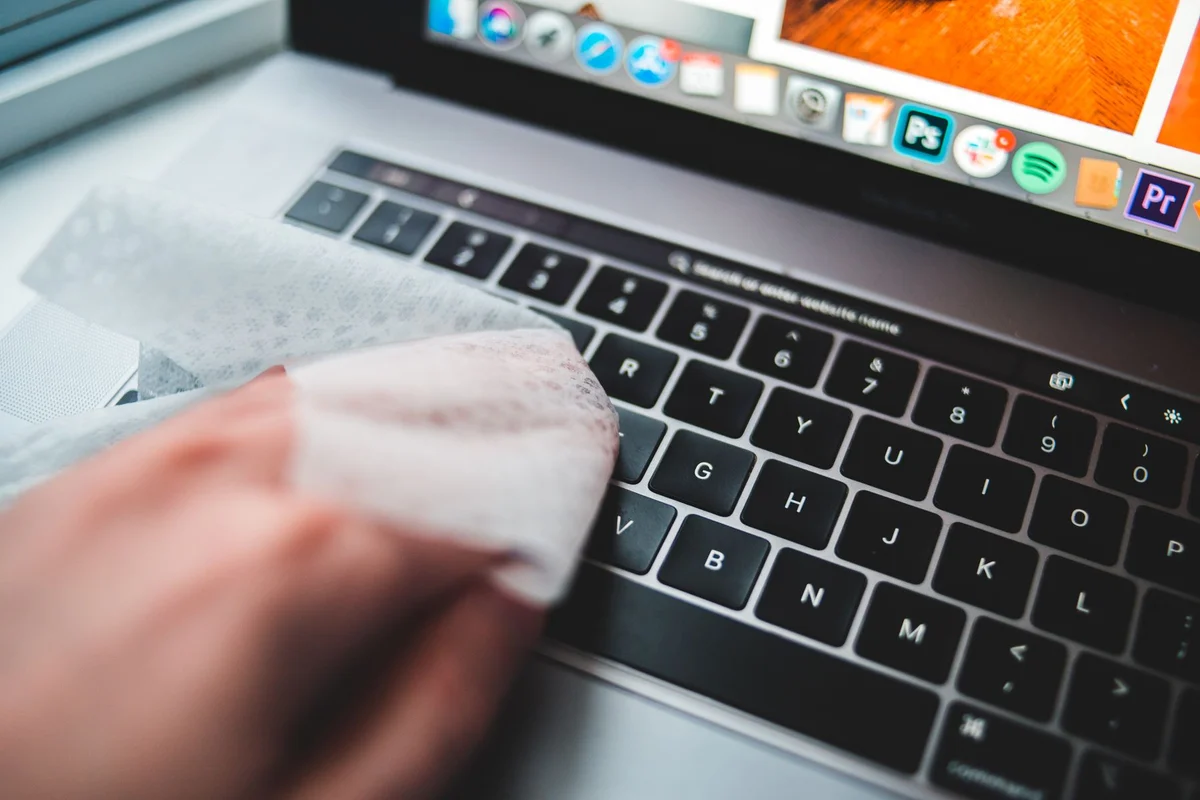
A soft, lint-free cloth lightly moistened with an approved liquid can remove surface residue. Logitech's guidance allows lightly moistening a cloth with water for its keyboard keys and warns against applying liquids directly to the device. Follow the exact model's instructions if they differ. Keep moisture minimal and out of the gaps. A wet cloth squeezed over the keyboard defeats the purpose of careful cleaning.
Wipe gently around legends and coated surfaces. Strong solvents and abrasive pads can change the finish or remove markings. Allow the keyboard to dry fully before reconnecting it. If a key remains sticky after the surface has dried, more liquid is not a sensible next experiment; the residue may be below the keycap or the mechanism may be damaged.
Only remove parts designed to come off
Some mechanical keyboards support keycap removal with the correct puller and procedure. Others, including many low-profile and laptop designs, use fragile retaining parts that are easy to break. Confirm support for your exact model before removing anything. Photograph the layout first if removal is permitted, and follow special instructions for large stabilised keys rather than pulling them like small letter keys.
A liquid spill is a separate problem from routine dust. Disconnect power safely, stop using the device and follow its spill guidance or seek service. Repeatedly pressing a wet key to see whether it still works can worsen the situation. For everyday care, keeping food away from the keyboard and brushing out loose debris before it builds up reduces the need for a deeper clean. Store cleaning tools somewhere they will not collect grit between uses.