One folder, several different purposes
Downloads brings together things with little in common: an installer, an invoice, a photograph and an attachment saved repeatedly. Their shared feature is simply how they reached the computer. That does not establish how long they should stay. A large old download may be disposable while a small old receipt still matters.
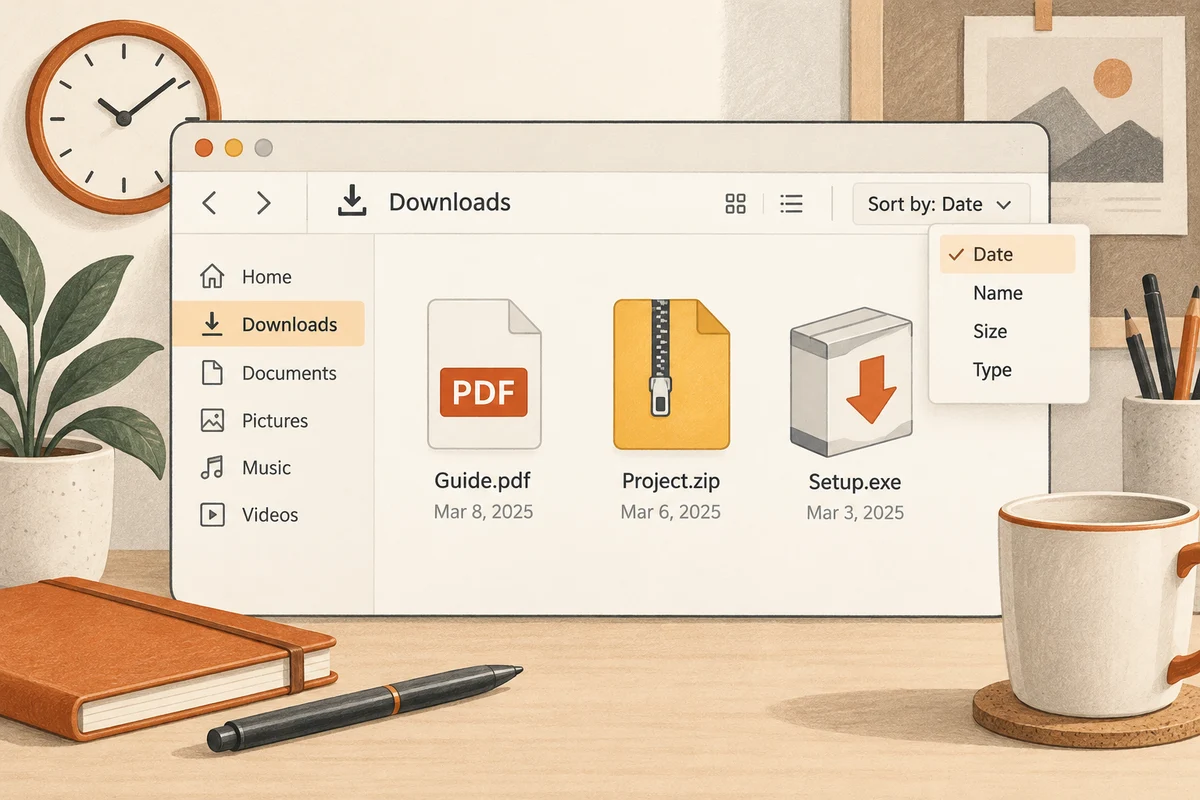
Open the folder in a details view and sort by date first. This can reveal files that arrived together. Sorting by size afterwards shows which items occupy the most room. Use these views to inspect the collection, not as automatic deletion rules. The largest item could still be your only archive of something important.
Give retained documents a destination
Move documents you need into a folder named for their purpose, then open them briefly at the new location. If you only opened an attachment through a browser or email application, establish whether a permanent saved copy exists at all. An entry in a recent-items list is not a substitute for knowing where the file is stored.
Make an explicit decision about installers. A standard application that remains freely available does not usually need five old installation packages in Downloads. A particular version with associated licence information might deserve deliberate archiving. In that case, record the version and keep the relevant information together instead of leaving the installer among unrelated arrivals.
A repeated name is only a clue
Suffixes such as (1) or Copy suggest repetition but do not prove identical contents. A publisher can replace a download while retaining its filename. For important paperwork, compare the content and relevant dates. Delete only after deciding which version to keep and confirming that it has reached its permanent location.
Review automatic cleanup as well. Depending on its settings, Windows can remove older downloads. Such a rule makes sense only if important files are reliably moved out first. Do not choose a short retention period while also treating the folder as an archive. Those two conflicting habits cannot be reconciled by a settings switch.
A brief end-of-task routine is often enough: file the useful documents, remove unwanted intermediate copies and consciously leave anything still pending. If you configure the browser to ask for a destination on every download, be sure you actually want to make that decision each time. For some workflows, a common arrival folder reviewed regularly is quicker and more reliable than choosing a destination carelessly whenever a dialog appears.
Follow what happened after the download
Consider an invoice that you downloaded, opened and forwarded. None of those actions establishes whether your only remaining copy still lives in Downloads. Move it into its intended filing location and open it there. You can then remove the earlier download deliberately. An entry under Recent files is not another storage location and may stop working after a move. Checking the actual path is more useful than assuming that an application’s recent list preserves the document.
A ZIP archive and its extracted contents are separate items. Establish where extraction placed the files and whether those are the copies you have been editing. Some applications display material inside an archive without making it a sensibly filed working document. Extract what you need into an appropriate folder before making changes. Afterwards, keeping or removing the original archive depends on its purpose; the essential question is which copy contains your work. Reopening the saved result answers that question.
Installers require a different decision. An easily obtained setup file need not remain beside personal documents forever. Older specialist software may justify retaining a required installer together with its licence evidence and instructions. Do not put passwords unprotected into filenames. On a shared computer, let each user deal with their own Downloads folder rather than deleting unfamiliar items from other accounts on speculation.