Trace the air through the case
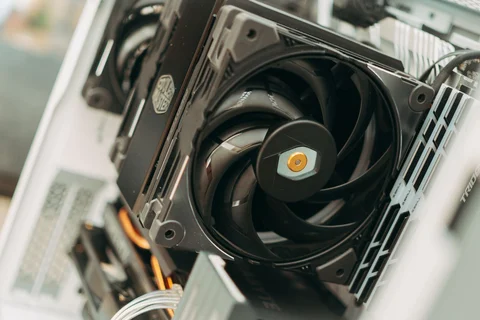
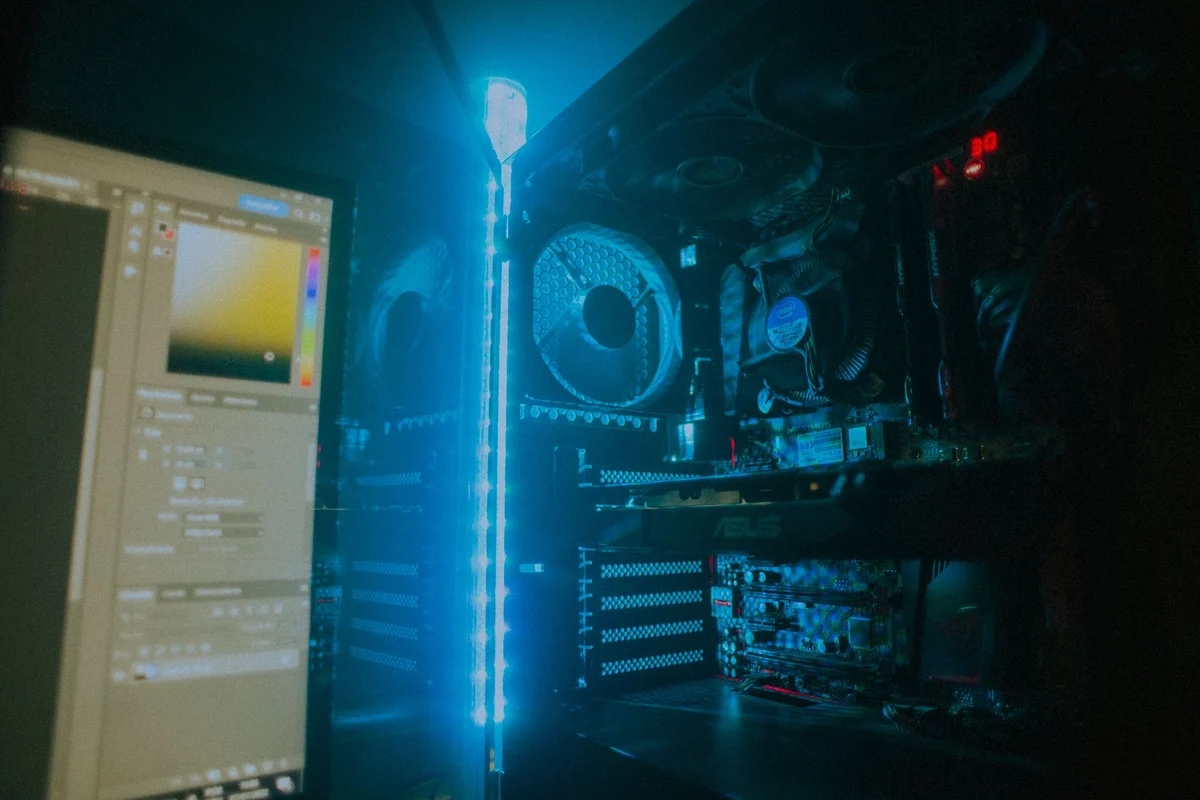
Case cooling is easier to understand as a route than as a fan count. Identify where cooler room air enters and where warmed air leaves. Drive cages, cables, filters and solid panels can affect that route. Several fans pointing into an obstructed space may accomplish less than a simpler arrangement with a clear path.
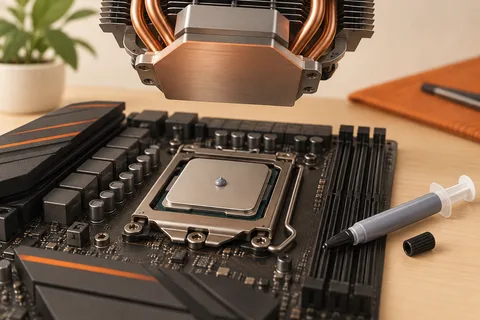
Read the case and cooler documentation before changing fan direction. Arrows on a fan frame can indicate airflow, but not every design marks them in the same way. Record the existing layout so it can be restored. Avoid changing fan positions, speed curves and cooler mounting at once; a result is easier to interpret when one variable changes.
Use a repeatable workload
Observe temperatures and noise during the task that causes concern. An idle reading does not describe a long export or game session. Keep room conditions reasonably similar between comparisons and use the component manufacturer's guidance when interpreting temperatures. There is no single temperature threshold that applies to every processor and graphics device.
If the system suddenly runs warmer, check for dust accumulation, blocked vents or a fan that has stopped. Clean through the manufacturer's recommended procedure with power disconnected. Do not push objects into a running fan or use cleaning methods that can damage components. A clogged filter is a different problem from an undersized cooler, even if both produce a hotter reading.
Leave space outside the case
A computer also needs room to exchange air with its surroundings. A cabinet that traps exhaust can undermine a carefully planned internal layout. Look at the space behind the desk and near side vents, not just the visible front panel. Follow the manufacturer's clearance requirements and keep soft materials away from intakes.
Judge a change by useful operation as well as a number. If extra fans lower temperature slightly but create distracting noise, a different speed profile or case position may be preferable. Never suppress warnings or disable necessary cooling simply to make the computer quieter. The aim is a stable system that can complete its workload, with a cooling arrangement you can inspect and maintain.
Compare a cabinet location with open room air
A computer may run normally on an open desk but become louder inside a furniture compartment. Before adding internal fans, inspect the surrounding route for air. A cabinet can collect warm exhaust or place a solid panel close to an intake. Follow the manufacturer's placement guidance and compare the same workload in an appropriate open location if the move can be made safely.
Keep the case itself assembled for that comparison. Removing the side panel changes the internal airflow at the same time as changing the room position, making the result harder to interpret. Record room conditions, the workload and whether fan noise or warnings change. A better result outside the cabinet points towards placement, though it does not prove that every internal component is fault-free.
If the intended location remains unsuitable, consider changing the furniture arrangement rather than forcing the computer to compensate. More fans cannot guarantee a useful supply of cooler air when the surrounding space traps heat. Maintain access to filters and cables in the revised position. A solution that works only with a cupboard door permanently propped awkwardly open may need a more deliberate change to the workstation.