The connector does not settle the question
Modern Thunderbolt connections use the USB-C connector shape, but a USB-C socket is not automatically a Thunderbolt port. Check the computer's exact specifications and the accessory's requirements. A dock advertised for Thunderbolt may offer limited fallback operation on some USB connections, while another may require Thunderbolt for its intended functions. The product manual should state that distinction.
Write down what you expect to work: charging, external displays, a storage device or another specialised accessory. Compatibility is more useful when expressed as those tasks than as a general yes or no. A dock that supplies power but does not deliver the expected monitor arrangement has only met part of the requirement.
Match generations and cables carefully
Thunderbolt generations have different capabilities and certification requirements. Backward compatibility does not mean every combination operates at the newest device's maximum performance. Use the documented compatibility information for the host, cable and peripheral. Pay attention to cable type and length rather than assuming that any USB-C charging lead can replace the supplied connection.
For a multi-monitor dock, check the supported display combinations for the operating system and computer. Resolution, refresh rate and the number of active screens interact with the connection and graphics implementation. A headline maximum for one display is not necessarily the maximum for several displays used together. Find the relevant table or ask the manufacturer about the exact combination.
Test the intended workload
Connect the accessory directly first, using the recommended cable. Confirm the basic function before adding hubs, extensions or extra devices. If an approval or driver step is documented for the system, follow the manufacturer's procedure. Do not disable security settings simply because an accessory fails to appear immediately.
Then test the complete desk arrangement, including charging while the computer is busy and using the screens at their intended settings. Save the working cable and port details. Firmware and driver updates should come from the relevant manufacturers and be applied according to their instructions. A clear record of the successful configuration makes a later cable swap or laptop replacement much less confusing.
Two working accessories do not prove a working dock setup
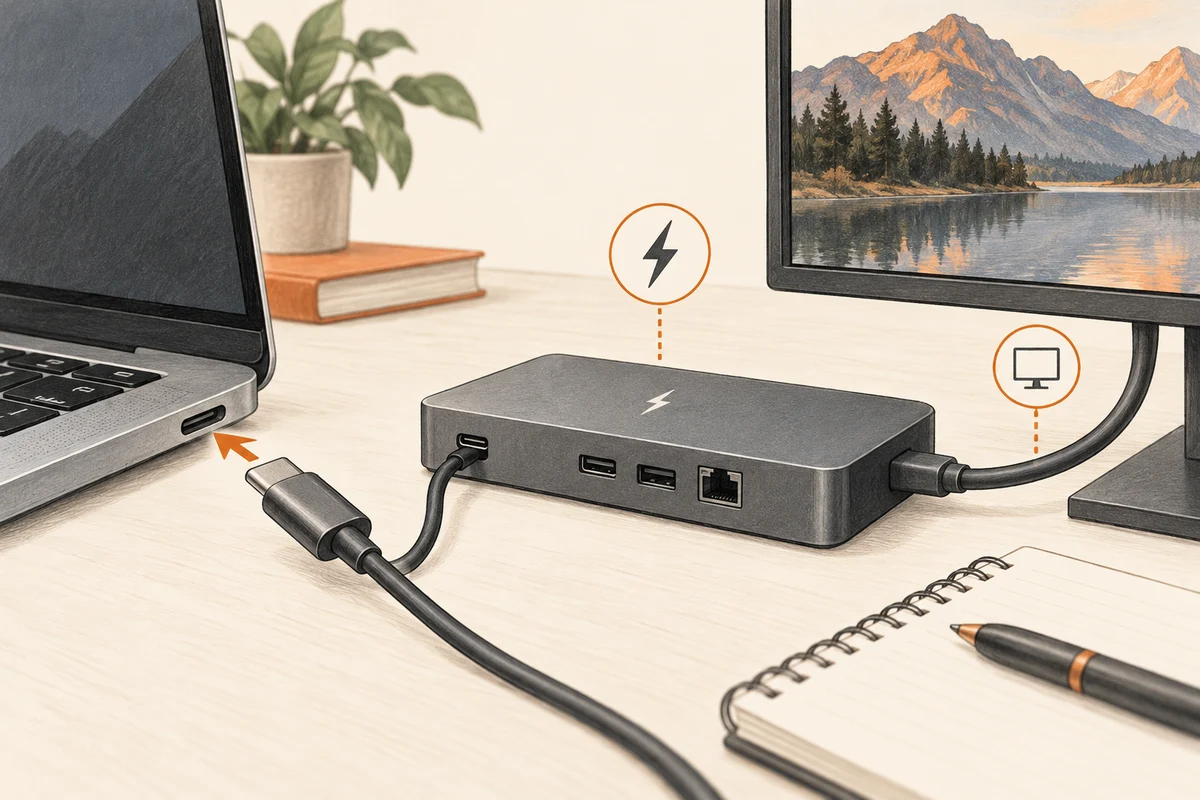
Imagine a laptop that drives a monitor correctly through a direct USB-C cable and also recognises an external drive. You then attach both through a Thunderbolt dock and lose the display. The earlier tests prove that the individual devices work through their tested connections. They do not prove that the laptop supports the dock's required host mode, that the replacement host cable is suitable, or that the dock supports that display combination.
Write the path down as laptop port, host cable, dock, display cable and monitor input. Check the requirement at each transition. If the dock documents USB fallback, read exactly which functions survive in that mode. Do not infer full Thunderbolt operation from a mouse that happens to work through the dock. A low-demand USB peripheral can succeed while another function remains unavailable.
Borrowing a known compatible host cable can be a useful test, provided its specifications meet the setup. Keep the same port and display settings during the comparison. If the picture returns, label that cable and check the previous lead's capabilities. If it does not, return to the compatibility table before buying another dock. This sequence turns an apparently inconsistent result into a series of separate, answerable questions.