A high number needs context
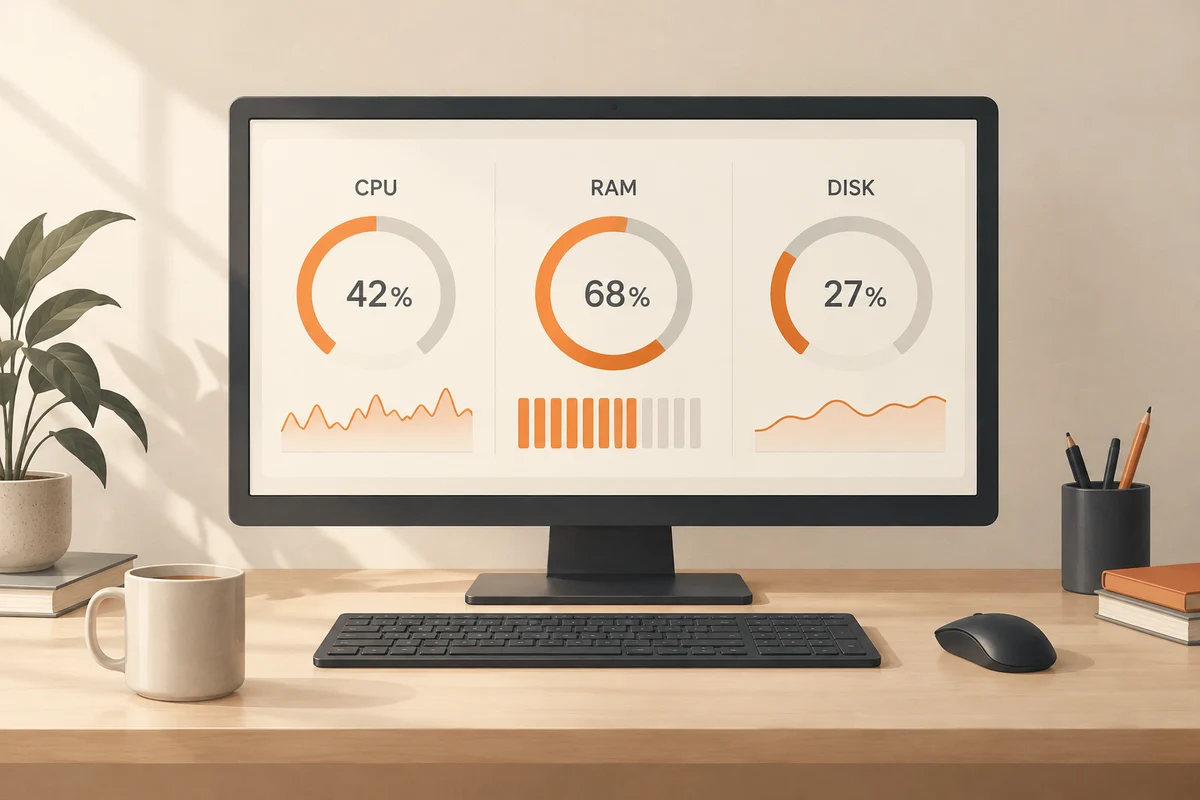
Task Manager reports high processor usage. During a video export that can be expected; while reading an already loaded text page it raises a different question. A percentage alone does not establish a fault. First note what the computer is supposed to be doing and which delay you actually notice.
Open Task Manager with Ctrl, Shift and Esc. Start with Processes and sort by the resource that stands out. CPU, memory, disk and network represent different kinds of activity. High disk activity is not the same as a full drive. Available storage capacity is checked elsewhere, so avoid treating the two measurements as interchangeable.
Observe a sequence rather than one frame
Leave the display open during a short, understandable operation. Launch the affected application, for example, and watch whether the load falls after it opens. A brief spike can be normal. A sustained high figure paired with a reproducible delay offers a more useful troubleshooting lead.
Repeat the same operation without one clearly optional background task. Save its work and close it normally. If behaviour does not change, that task is probably not the complete explanation. Avoid removing several applications together, because the comparison then loses its ability to identify which change mattered.
A process name is not a verdict
An unfamiliar name is insufficient reason to terminate a process. Windows and applications consist of multiple components. Use the available information to identify the associated software and publisher. Consult that program's official documentation where needed. A random webpage issuing generic warnings about every process name is not a reliable diagnosis.
Forcing an application to end can discard unsaved work. Reserve it for a genuinely unresponsive program when normal closure is no longer possible. Do not terminate unfamiliar system processes speculatively. An unstable computer afterwards would add another problem on top of the original observation and make the evidence harder to interpret.
Make the observation useful
Record the resource involved, the application at the top of the list and the step at which the delay begins. A screenshot with a time and short explanation can help, but avoid unnecessarily exposing private filenames. For a recurring fault, a series of understandable observations is more valuable than one exceptionally high reading.
Task Manager can suggest a bottleneck, but it cannot decide a hardware purchase by itself. An application may be waiting for a network response while processor and memory figures look ordinary. Occupied memory can also be doing useful work. Connect the measurements to the actual difficulty and test a specific hypothesis before turning a snapshot into a general judgement about the computer's capabilities. The aim is a narrower question, not a dramatic number.
Read a short measurement in context
High utilisation during an export may be exactly what should happen. The more useful questions are whether the task is progressing and whether other necessary work remains possible. Do not compare an idle computer one day with an update running on another. Open the same application with comparable material and watch the behaviour for a while. One peak establishes neither a fault nor a permanently inadequate computer.
The displayed resources answer different questions. Occupied memory is not the same thing as processor load. Heavy disk activity initially tells you that storage work is happening; it does not automatically explain a delay. When an application responds slowly, watch the relevant resource alongside its actual progress. A background service may contribute without its unfamiliar name making it suspicious. Context is needed before a process list becomes an explanation.
Before ending a process, save open work in the associated application if it still responds. Forced termination is not a normal way to save a document. For system processes or unfamiliar services, establish what they belong to rather than stopping everything with a high number. If an application repeatedly hangs, record the file type, preceding action and observed behaviour. Those details are more useful to support than a picture showing only an unusually high percentage. Keep a copy of the affected project before trying a potentially disruptive repair.