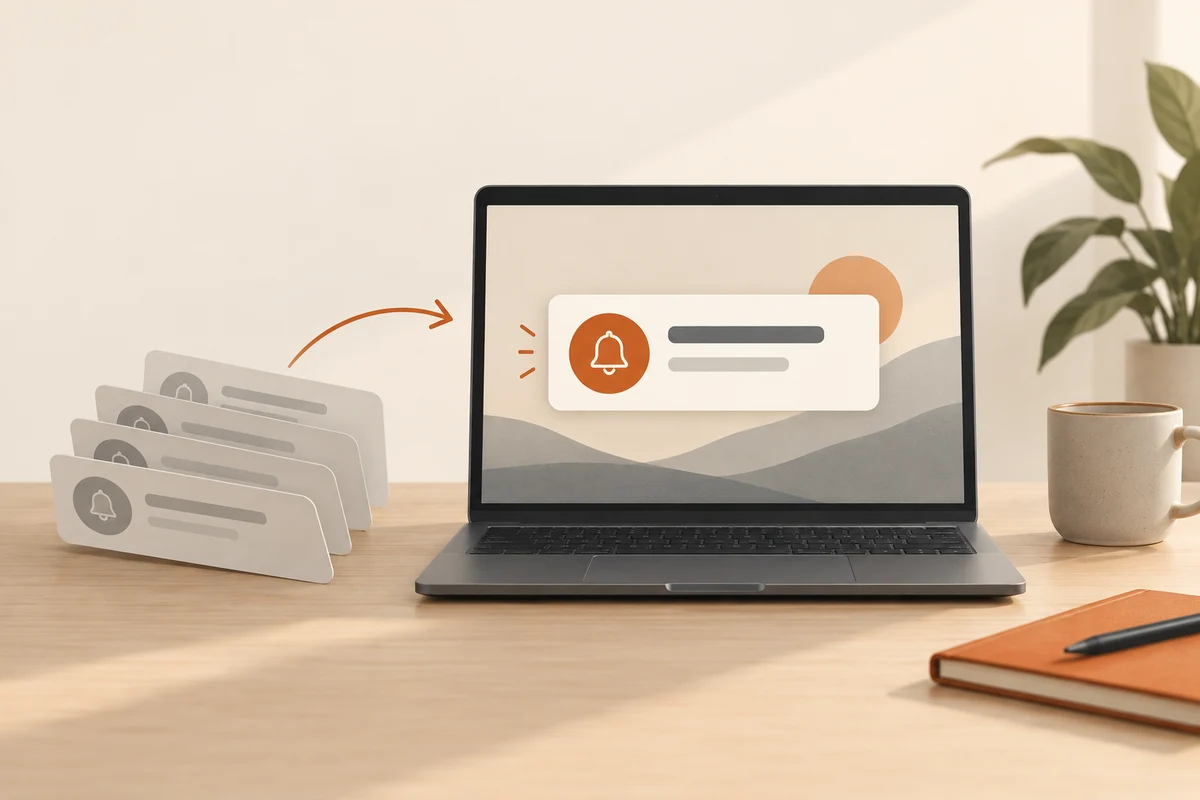
Different messages deserve different attention
A calendar reminder and a promotion can arrive with similar visual force despite having very different value. Rather than disabling everything, identify the applications that actually interrupt you. Observe an ordinary working day and note the recurring sources. This bases the adjustment on real use rather than on an overwhelming list of installed software.
Windows notification settings let you adjust individual applications. Depending on the application and version, you can control banners, sounds or presence in the notification centre. A message need not appear immediately as a banner to remain available for later inspection. Choose its presentation according to the urgency of its content.
Inspect browser alerts at their source
If a browser repeatedly displays a website's messages, review its site permissions too. Notification permission may have been granted during an earlier visit. Remove access you no longer need there. Silencing the entire browser could also suppress a service whose messages you genuinely rely on.
Some applications provide their own controls for different message categories. Promotions, social activity and specific task reminders may be adjustable separately. Begin inside the application when you want to keep one category. That avoids losing a useful reminder along with every other message from the same app.
Temporary quiet differs from permanent removal
Do Not Disturb can help during a focused work period. Review its exceptions so you know which alerts may still appear. Also decide when to review deferred messages. A quiet hour is less useful if an important appointment is later missed because the setting was forgotten and the accumulated notices were never checked.
Before screen sharing, inspect message previews as well as sounds. A silent banner can still reveal a person's name or private content. Use the available presentation controls and check the sharing preview. A temporary quiet mode does not replace deliberately choosing the window you intend to share.
Test the revised arrangement with an expected, harmless alert such as your own calendar reminder. Confirm that necessary messages remain noticeable. When an application falls out of use, revisit its old permissions as well. A small, periodically reviewed set of useful notifications is easier to understand than a blanket off switch whose consequences become apparent only after the next missed event.