Change the surface before changing settings
A pointer that jumps on a glossy desk can make a perfectly usable mouse feel broken. Move the mouse onto a clean, plain sheet of paper or a suitable mouse mat and repeat the same slow movement. If tracking becomes consistent, the original surface is an important part of the problem. Glass, reflections and strong surface patterns can affect sensors differently; a claim that one model works on glass does not apply to every mouse.
Check the underside while the mouse is switched off or unplugged. A hair across the sensor opening or debris around the feet can interfere with movement. Remove loose debris gently according to the manufacturer's cleaning guidance. Do not scrape the sensor window or introduce liquid into it. If the mouse feet are peeling, the device may drag physically even when its tracking is working.
Watch whether it skips or simply feels too fast
Tracking trouble often looks like movement that stops, jumps or changes direction unexpectedly. A pointer that moves smoothly but travels too far may instead need a sensitivity adjustment. Change one setting at a time and use a familiar task, such as selecting a line of text, to judge the result. Randomly changing operating-system speed, application sensitivity and mouse DPI together makes it harder to identify what helped.
For a wireless mouse, check its battery or charge level and try the receiver in a position with a clearer connection. A receiver hidden behind a metal desktop case may behave differently from one closer to the mouse. Keep the surface test unchanged while checking the connection, so you are not altering several conditions at once.
Choose a mat that fits the movement
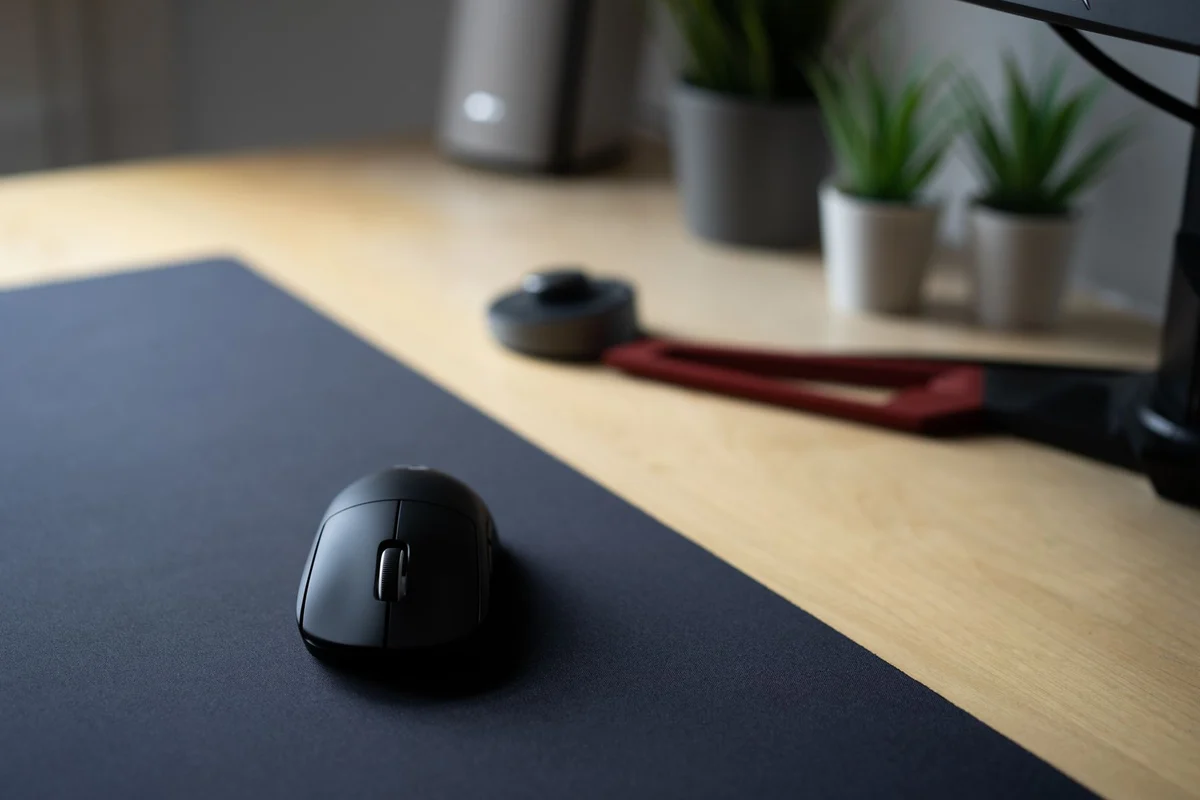
A mat should provide enough space for the way you move the mouse, stay flat and avoid sliding across the desk. Thick edges that catch your wrist or a curled corner can be more troublesome than a modest difference in glide. Check the actual dimensions rather than relying on a product photograph.
If the same skipping occurs on several appropriate surfaces and another mouse works normally on the computer, the original mouse becomes a stronger suspect. If both mice skip, investigate the computer or connection instead. Keep notes of these simple comparisons. They are more useful for support or a replacement decision than the general statement that the mouse sometimes feels wrong.