Count the devices that remain connected
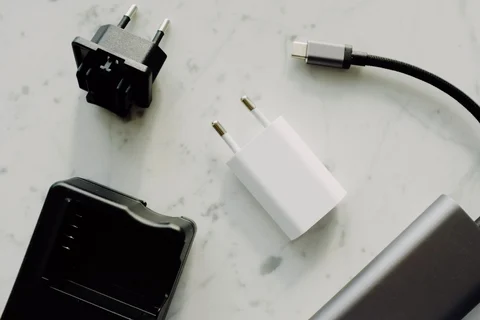
Before comparing laptop port counts, list the equipment that will be connected at the same time. A charger, monitor, mouse receiver, backup drive and webcam can consume a small machine's connections quickly. Separate permanent desk equipment from occasional travel accessories. This reveals whether a dock is useful or whether the built-in ports already cover the real workload.
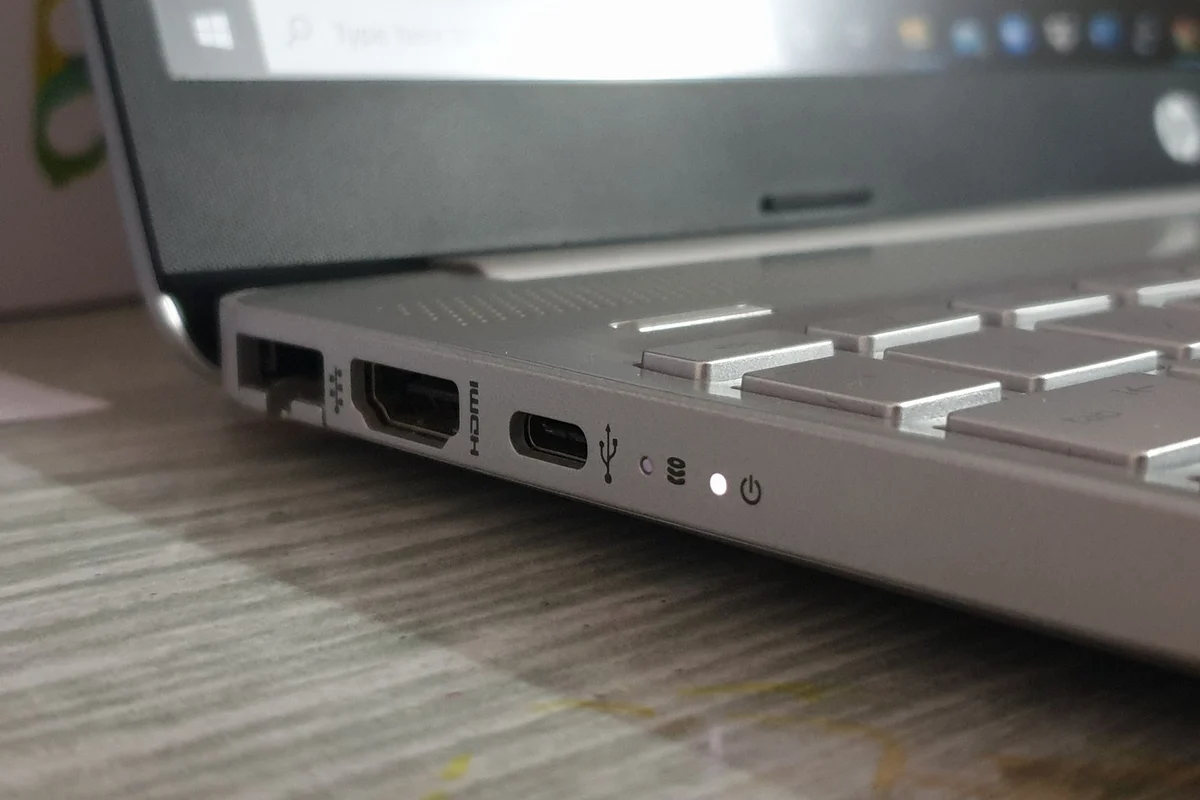
Map each device to a required function, not just a connector shape. A display needs a supported video path, a fast drive needs an adequate data connection and charging needs the documented power capability. Two USB-C sockets on one laptop may not offer identical features. The port diagram for the exact configuration is the best place to begin.
Position matters during use
Look at where the sockets sit along the chassis. A stiff display cable on the mouse side can be inconvenient, while a charging lead crossing the front of the desk creates another obstruction. Closely spaced ports may not accept two bulky plugs together. Photographs from both sides help reveal these everyday details that a specification table leaves out.
For travel, consider the connections available at the places you visit. A presentation adapter may be worth carrying even if the desk monitor uses a different connection. Verify the adapter with the laptop before relying on it at a meeting. A bag of untested adapters is not the same as a working presentation setup.
Budget for the complete connection
If a dock is necessary, include its price, power supply and host cable in the laptop comparison. Check supported monitor combinations and charging power for the exact computer. A dock can simplify daily connections, but it also introduces another component to troubleshoot. Keep a direct charging or display route available where practical.
Leave room for occasional tasks such as connecting recovery media or a backup drive. If every port is permanently occupied, determine what can be disconnected without disrupting work. A useful port selection is not necessarily the longest list: it is a documented set of connections that handles your devices together, in positions that remain accessible when the laptop is actually on the desk.
Make one connection map for home and one for travel
At home, list the devices that stay attached and assign each to a documented port or dock connection. For travel, make a separate list containing only what goes in the bag. This often reveals that a laptop with fewer built-in sockets can work well at a fixed dock but needs a specific adapter away from it. Include that adapter in the travel cost and weight.
Test the travel arrangement without the home dock before a meeting. Connect the charger and the presentation device together, because testing each separately can hide a shared-port problem. Leave the working adapter with the travel kit. A connection map is useful when it reflects simultaneous use in each location rather than combining every accessory into an unrealistic single list.