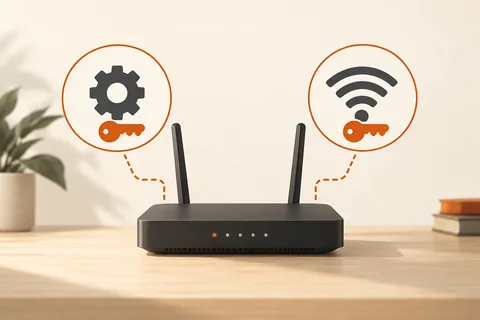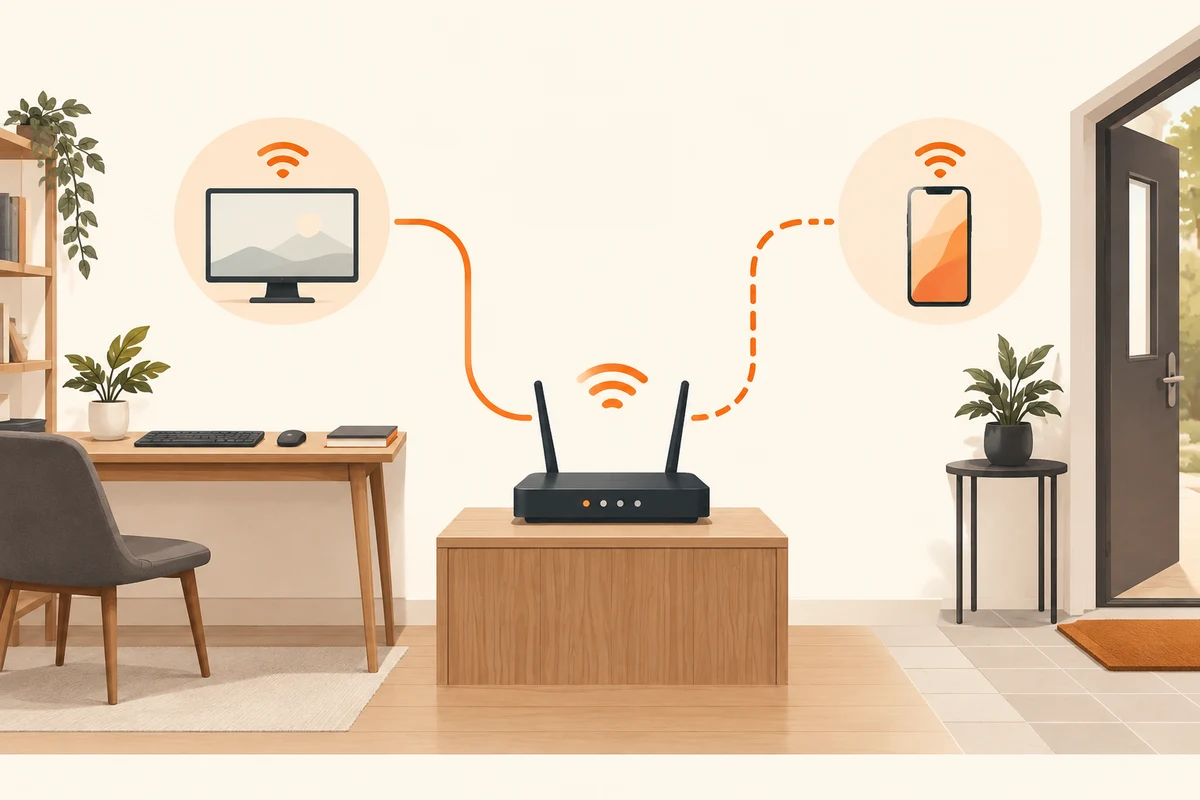
Give access while limiting its scope
A visitor wants to use the internet but usually does not need private file shares or router administration. A guest network can separate those needs. Its exact isolation depends on the router and chosen settings. Calling a network Guests does not by itself guarantee a particular security boundary.
Open the router's official management interface and find its documented guest-access feature. Check whether guest devices can reach the home network and whether they can communicate with each other. Those are different controls serving different purposes. Ordinary internet access usually does not require exposing private local devices.
Use a distinct name and key
Choose an identifiable network name without publishing unnecessary personal information. Give it its own wireless password rather than sharing the router's administrative password. A QR code can make joining easier if it contains the correct guest-network details. Treat that code as access information too and distribute it deliberately.
Decide whether the guest network is needed continuously or should stop after the visit. Some routers provide scheduling or automatic deactivation. Read what the option actually triggers. A guest who needs to work the following morning requires a different arrangement from somebody visiting briefly in the evening.
Verify it with a device you control
Connect one of your own devices to the guest network for a trial. Check that internet access works and that the intended local restrictions apply. Do not rely solely on seeing a different name in the wireless list. If the router offers a clear status view, inspect the test device's network assignment there as well.
A printer or media device on the home network may intentionally be unreachable from an isolated guest network. That is not necessarily a wireless fault. If visitors genuinely need that function, look for a targeted method supported by the manufacturer. Opening the entire home network would be a broader change than the specific activity requires.
Guests still share the incoming internet connection with other devices. Review the router's intended limiting or prioritisation features if needed, rather than choosing arbitrary values. After the visit, disable access or change its credentials according to actual requirements. The useful outcome is a clear boundary: you understand who can reach the internet through it and which additional parts of the home network have deliberately not been opened.
Test the guest experience deliberately
Connect a device you control to the guest network and open a harmless website. Then establish whether separation from the normal home network matches your intention. The exact scope depends on router options: some allow exceptions or communication between guests. Do not rely on the label Guest alone. Read the settings and check the intended workflow without browsing other people’s private material. Successful internet access proves only that part of the setup.
Printing creates a common conflict. A visitor can reach the internet but cannot find the printer on the home network. That may be the intended result of isolation. Do not immediately open access to everything for one printout. Passing the document to the responsible person through an agreed route may be enough for the occasion. Regular shared printing calls for a deliberately planned arrangement rather than an accidental exception that remains enabled long after the visitor leaves.
For an event, decide who receives the credentials and when they will change again. A password printed on paper can be passed on later. Plan a change so that any equipment expected to remain connected is not unexpectedly disconnected. A visitor network and a separate network for permanently installed devices are not necessarily the same task. Choose according to the access required and what the router supports, rather than grouping every unfamiliar device together without considering its purpose.